My Schedule
My Schedule, within the Activities module, brings together the activities assigned to you. You can review deadlines, open related records, and update each activity's status.
In this guide
- View your activities
- Use list views and tools
- Create an activity
- View an activity
- Manage an activity
General workflow
- Open Activities → My Schedule to review your assigned activities.
- Choose a view or use the list tools to find an activity.
- Open an activity to review its details and related record.
- Mark it as done, edit it, or cancel it as needed.
Activities are created from the Chatter of a record. Once scheduled, they appear in both that record's Chatter and My Schedule.
View your activities
Go to Activities → My Schedule. The list displays activities assigned to the current user.
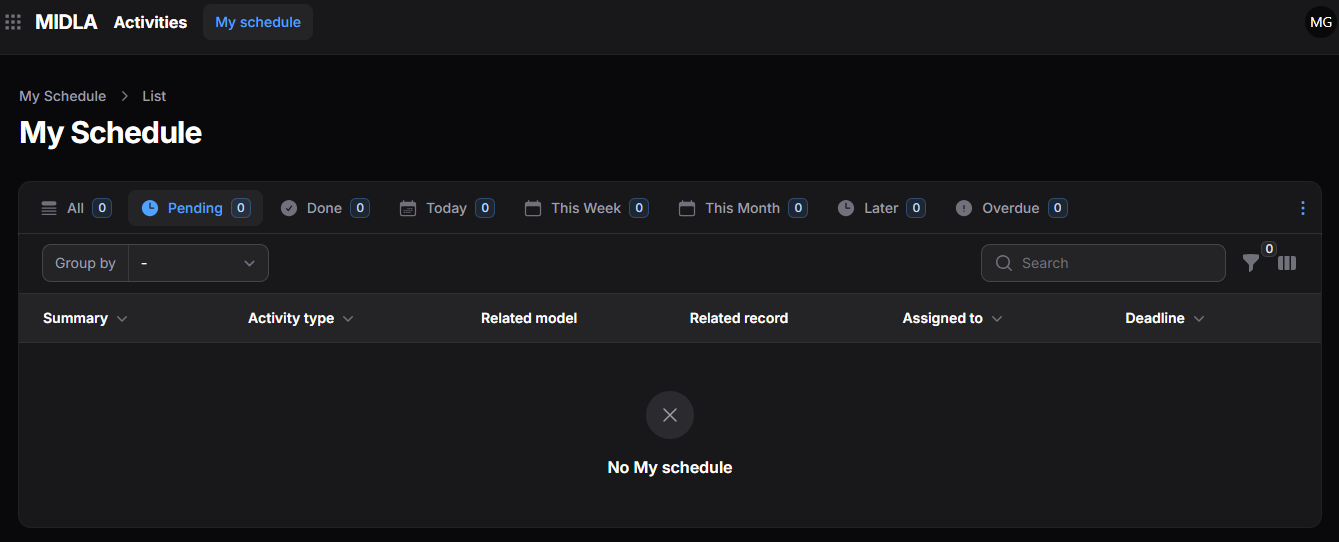
Figure 1. My Schedule list
Information in the list
Each row represents an activity. The list provides its summary, type, related module and record, assignee, and due date.

Figure 2. Information in the activity list
| Column | What it shows |
|---|---|
| Summary | Title or short description of the activity. |
| Activity Type | Type of activity assigned. |
| Related Module | Module containing the associated record. |
| Related Record | Specific record linked to the activity. |
| Assigned To | User responsible for the activity. |
| Due Date | Deadline for completion. |
Depending on system configuration and permissions, you may also see Company, Created By, Creation Date, and Update Date.
Use list views and tools
Choose a view
Views organize your activities by status or due date.

Figure 3. My Schedule views
| View | Activities shown |
|---|---|
| All | All activities assigned to you. |
| Pending | Activities awaiting completion. |
| Completed | Completed activities. |
| Today | Activities due today. |
| This Week | Activities due this week. |
| This Month | Activities due this month. |
| Later | Activities due after the current month. |
| Overdue | Pending activities past their due date. |
Use the Action Group (⋮) menu at the top-right of the list to manage views. A view's menu offers Apply View, Remove from Favorites, and Set as Default. Select Reset to restore the default view configuration.
Use the list tools
The list also provides tools for locating and organizing activities.

Figure 4. List tools
| Tool | What it does |
|---|---|
| Group By | Organizes activities using the available grouping criteria. |
| Search | Finds activities by keyword. |
| Filters | Narrows the list using specific criteria. |
| Column Manager | Selects and arranges the visible columns. |
Create an activity
Activities are scheduled from the Chatter of a record. To create one:
- Open the record the activity relates to.
- Open its Chatter.
- Select Schedule Activity.
- Complete the form and select Schedule.
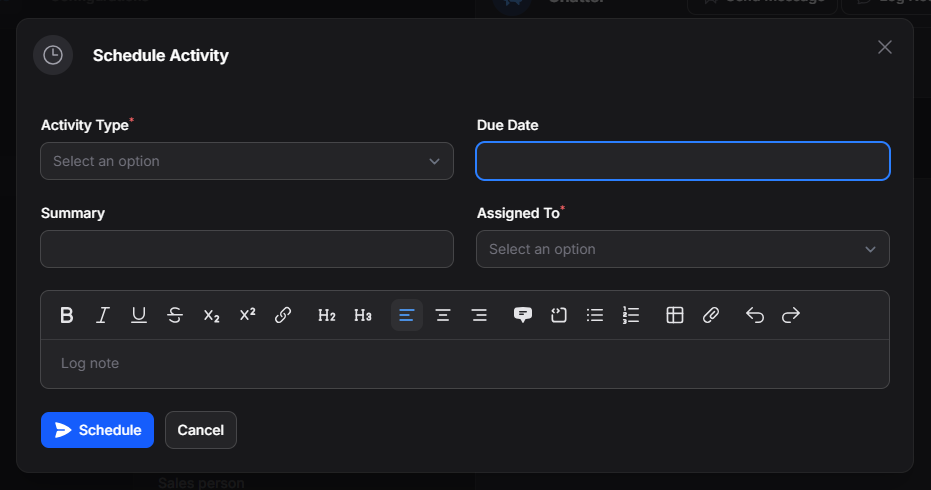
Figure 5. Activity scheduling form
| Field | What it does |
|---|---|
| Activity Type | Sets the kind of activity: Meeting, Exception, Pending Task, or Call. |
| Due Date | Sets the deadline. |
| Summary | Adds a title or short description. |
| Assigned To | Selects the user responsible for the activity. |
| Logged Note | Adds observations or other information. |
Select Schedule to save the activity or Cancel to close the form without saving.
Where the activity appears
The activity is recorded in the source record's Chatter, with its type, assignee, due date, summary, and note.
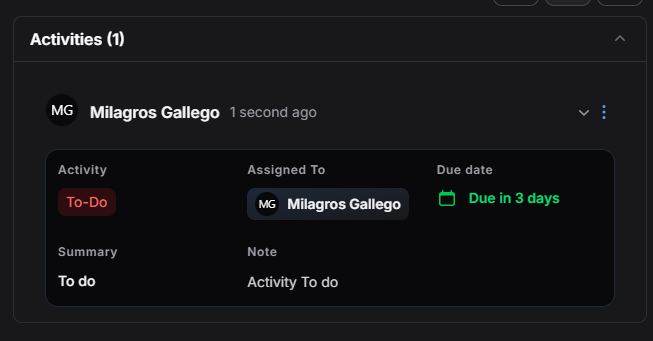
Figure 6. Activity in Chatter
It also appears automatically in Activities → My Schedule for the assigned user.
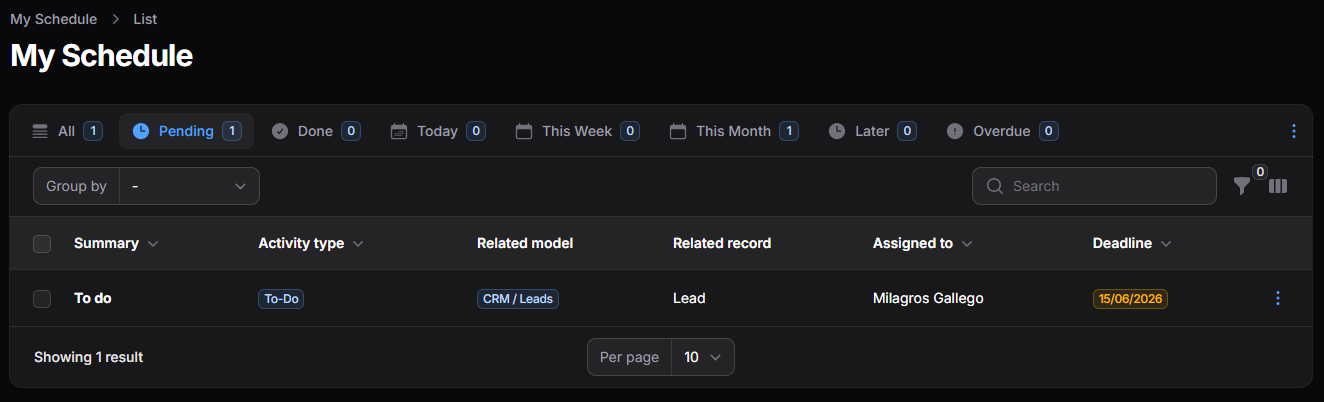
Figure 7. Activity in My Schedule
View an activity
Select an activity in the list or open its Action Group (⋮) menu at the end of the row.
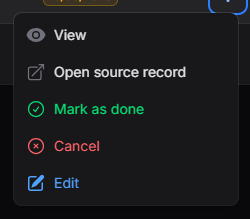
Figure 8. Activity actions menu
Select View to see the activity's full information, including its related record and audit details.
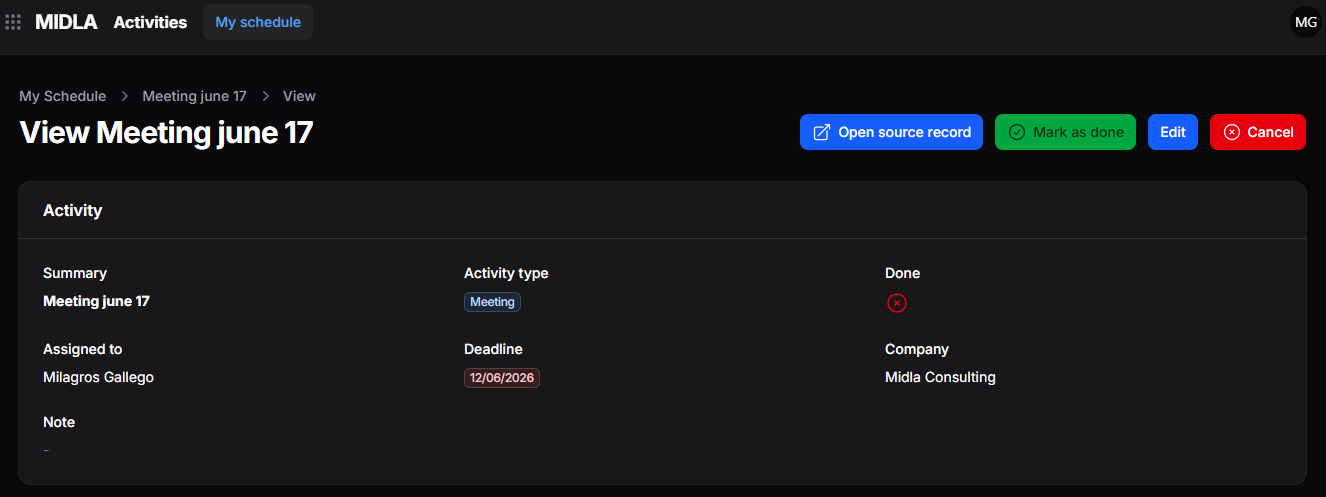
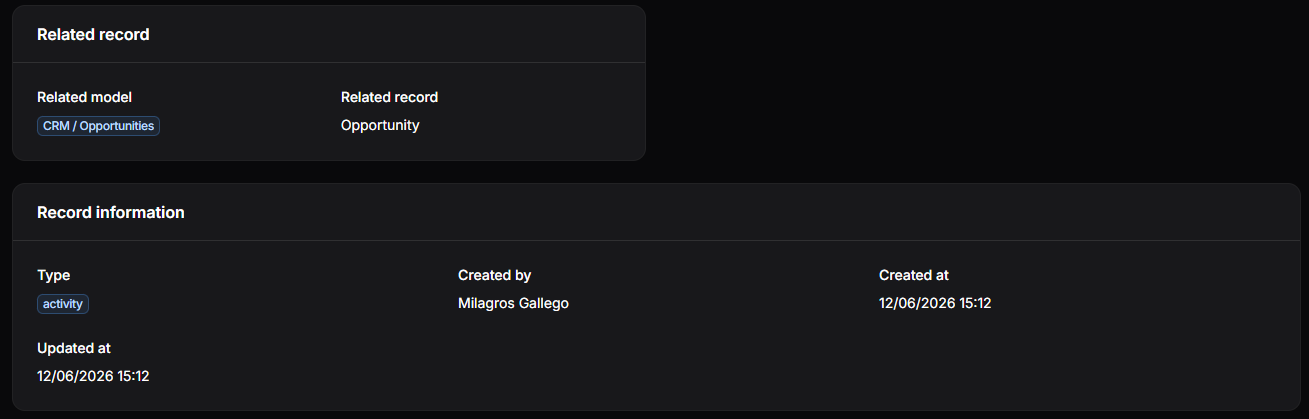
Figure 9. Activity details
Manage an activity
The activity detail view provides actions to open the source record, complete the activity, cancel it, or edit its details.

Figure 10. Activity actions
Open the source record
Select Open Source Record to go directly to the record linked to the activity. For example, an activity scheduled from a lead opens that lead's record.
Mark an activity as done
Select Mark as Done when you have completed the activity. Enter the required Feedback to record the result, then select Mark as Done to save it. Select Cancel to close the window without changing the activity.
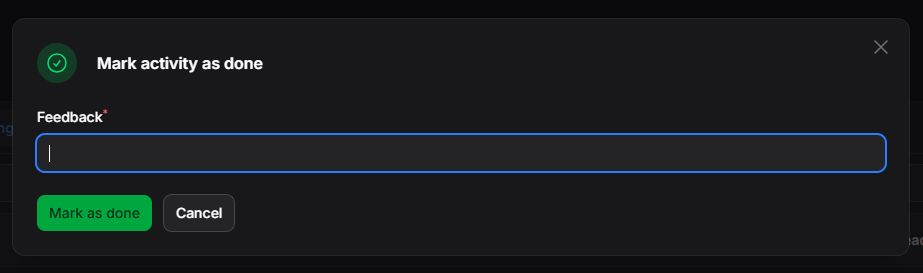
Figure 11. Completing an activity
The activity moves from Pending to Completed. Its feedback is stored in the related record's Chatter.
Cancel an activity
Select Cancel on the activity to open a confirmation window. Choose Cancel Activity to delete the activity, or Cancel in the confirmation window to keep it.
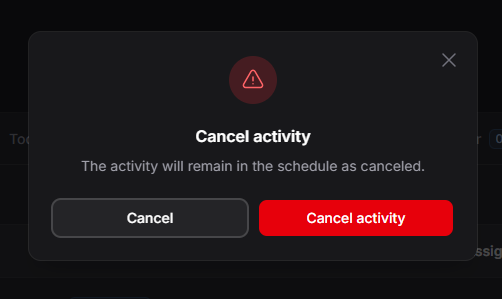
Figure 12. Activity cancellation confirmation
After cancellation, the activity no longer appears in Activities or in the related record's Chatter.
Edit an activity
Select Edit to update the activity's information.
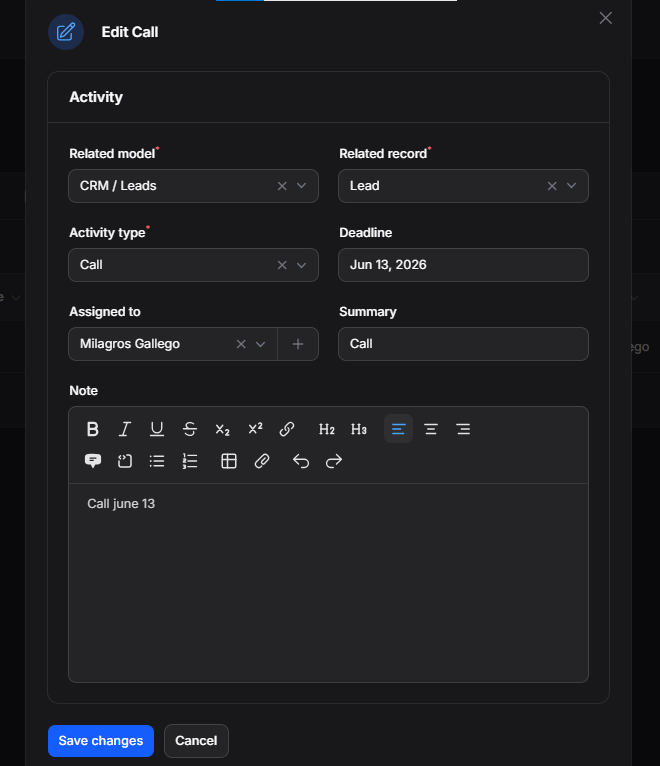
Figure 13. Activity edit form
| Editable field | What it controls |
|---|---|
| Related Module | Module associated with the activity. |
| Related Record | Record linked to the activity. |
| Activity Type | Type of activity. |
| Due Date | Deadline for completion. |
| Assigned To | Responsible user. |
| Summary | Title or short description. |
| Note | Additional observations. |
Select Save Changes to apply the updates or Cancel to close the form without saving. Changes to the activity are reflected in the related record's Chatter.