Team Members
Team Members, within CRM → Configurations, lets you assign users to Sales Teams. Each record links a user to a team, helping you organize responsibilities in the sales process.
In this guide
General workflow
- Open CRM → Configurations → Team Members.
- Review or search the existing team memberships.
- Select New Team Member.
- Choose the Sales Team and the user.
- Select Create to save the association.
View the Team Members list
Go to CRM → Configurations → Team Members. The list displays the registered associations between users and Sales Teams. From here, you can create a new association or view, edit, and delete an existing one.
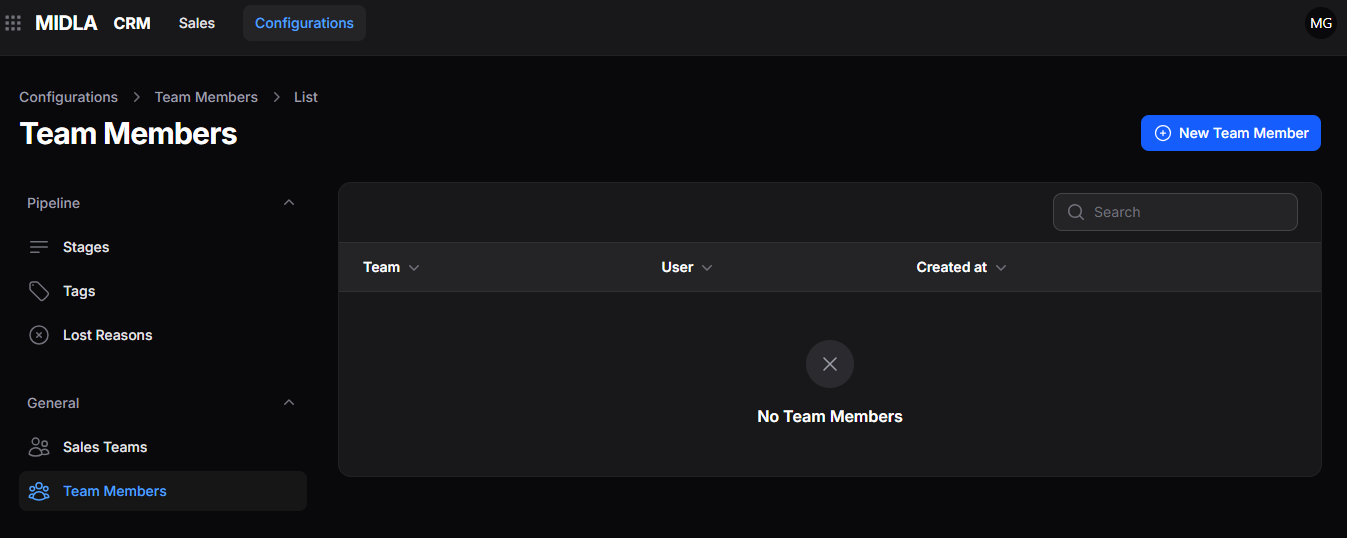
Figure 1. Team Members list
List tools
| Tool | What it does |
|---|---|
| Search | Finds a team member using the available search criteria. |
| Records per Page | Sets how many records appear on each page and lets you navigate through the results. |
Create a Team Member
From the Team Members list, select New Team Member. The form lets you choose the team and the user to add to it.
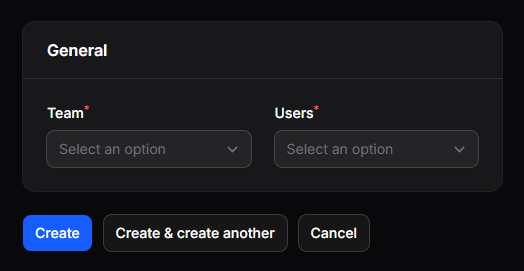
Figure 2. Team Member creation form
General
| Field | What it defines |
|---|---|
| Team | Sales Team to which the user will be assigned. |
| User | User who will be added to that team. |
Save the Team Member
| Action | Result |
|---|---|
| Create | Saves the association between the user and the team. |
| Create & Create Another | Saves the association and opens a new form. |
| Cancel | Closes the form without saving. |
Manage an existing Team Member
After creation, the association appears in the Team Members list. Open the record or use the available actions to view, edit, or delete it.
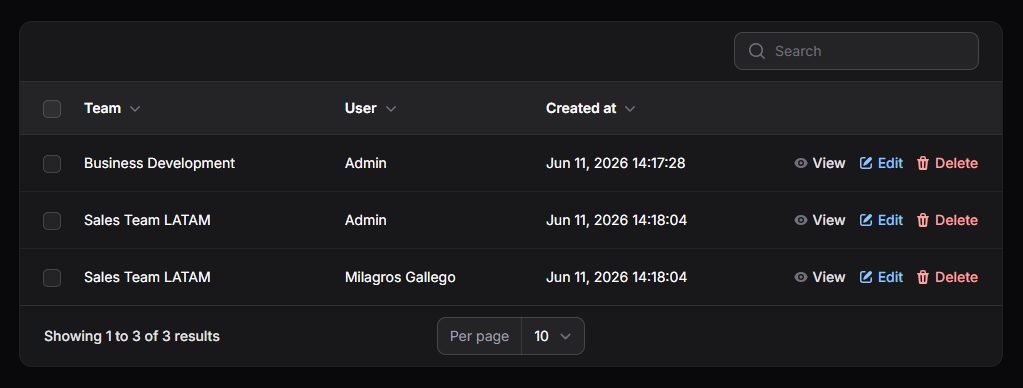
Figure 3. Created Team Members
View a Team Member
Select View to see the details of the association between the user and the Sales Team.
Edit a Team Member
Select Edit to open the record with its existing information. Make the necessary changes and save them.
Delete a Team Member
Select Delete to remove the association. The user will no longer be associated with that Sales Team through this record.