Customers
From this section, you can view your customers and enter their general, contact, tax, and business information.
Navigation path: Invoicing → Customers → Customers.
1. Open the customer list
Go to the Invoicing module, select Customers in the top menu, and then Customers in the sidebar.
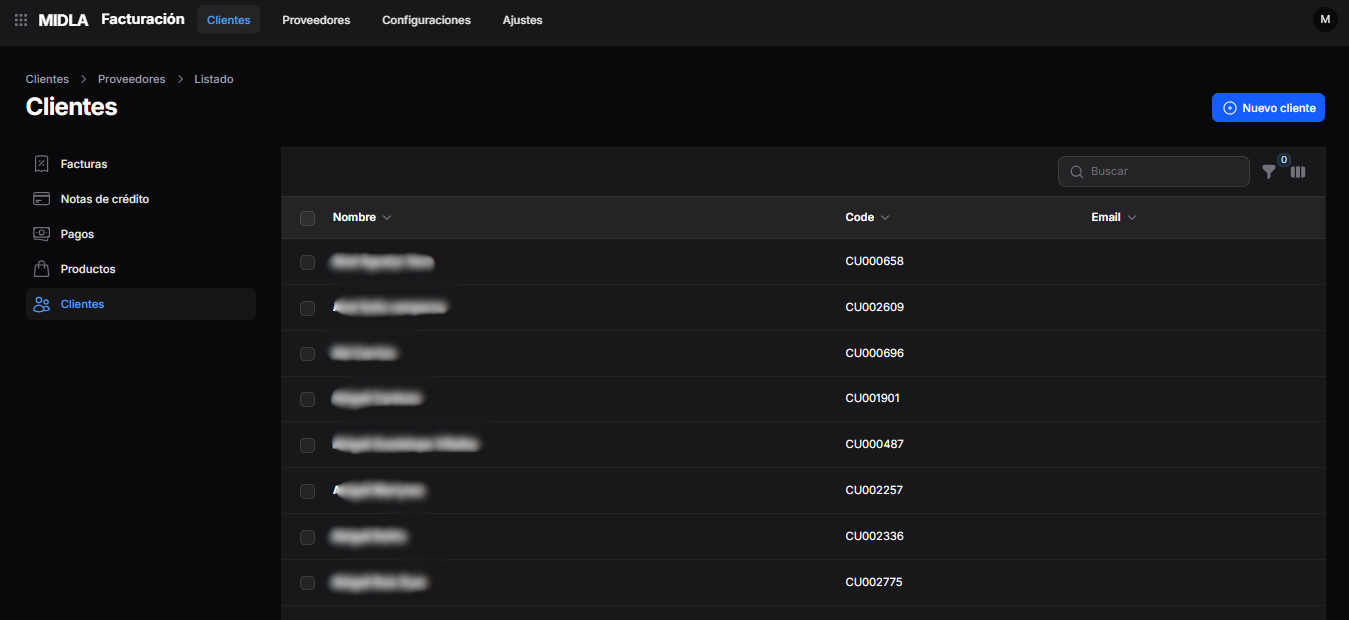
The list displays the Name, Code, and Email columns.
Use Search to find a customer. You can also use the filter and column icons to adjust the view.
2. Create a customer
Click New customer in the upper-right corner of the list.
3. Complete the general information
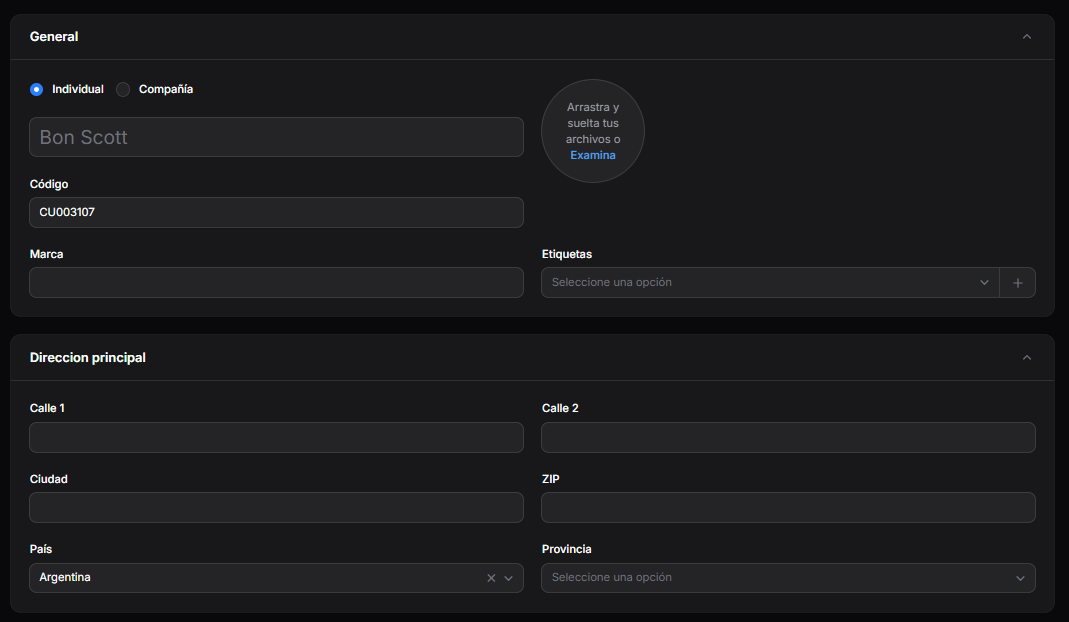
In the General section:
- Select Individual or Company, as appropriate.
- Enter the customer's name.
- Review the Code displayed in the form.
- Complete Brand, if applicable.
- Select the Tags you want to associate with the customer.
- To add an image, drag the file into the indicated area or click Browse.
4. Complete the main address
In the Main Address section, complete:
- Street 1.
- Street 2, if you need to add further information.
- City.
- ZIP: postal code.
- Country.
- State/Province.
Review the selected country and change it if necessary.
5. Complete the contact information
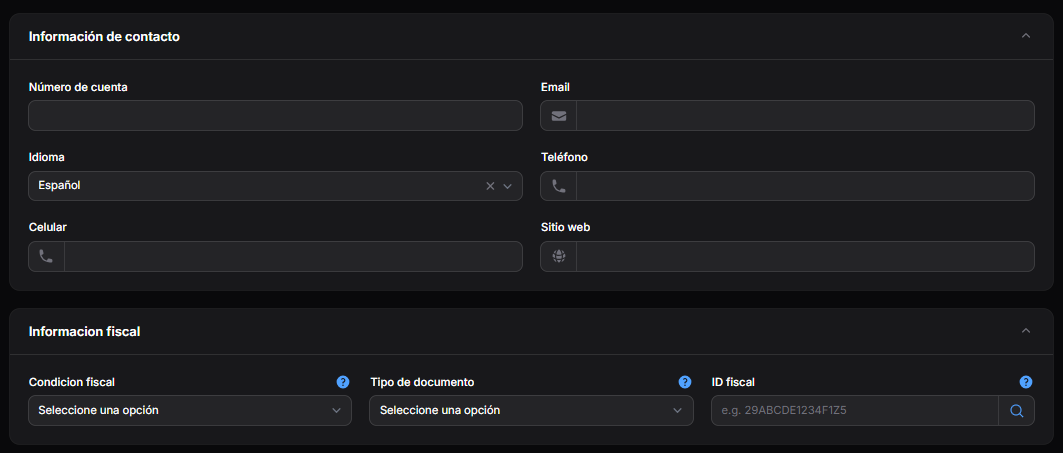
In the Contact Information section, enter the available details:
- Account Number.
- Email.
- Language.
- Phone.
- Mobile.
- Website.
6. Complete the tax information
In the Tax Information section:
- Select the customer's Tax Status.
- Select the Document Type.
- Enter the corresponding Tax ID.
7. Complete the Sales tab
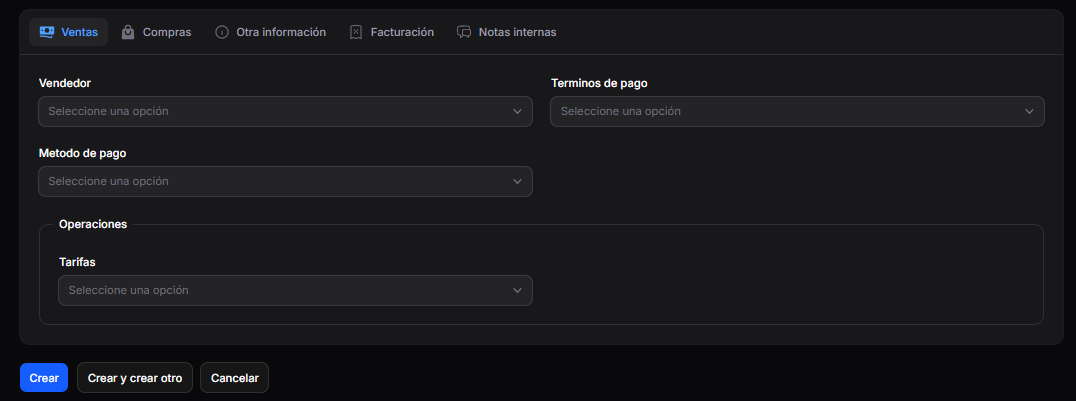
In the Sales tab, select the applicable details:
- Salesperson.
- Payment Terms.
- Payment Method.
- Rates, under the Operations section.
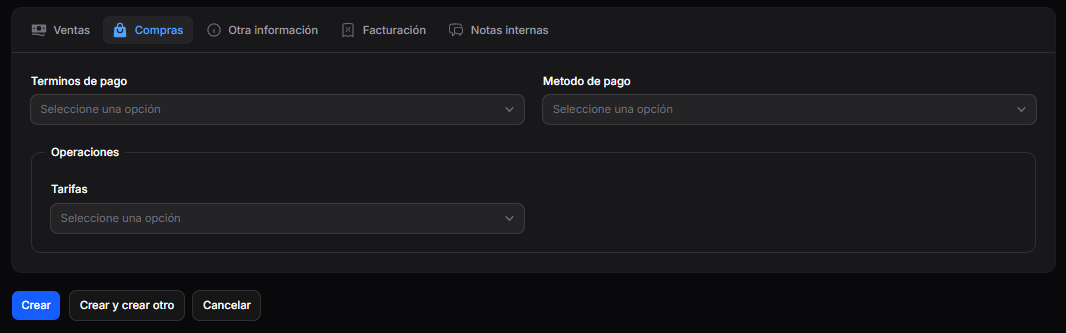
8. Review the Purchases tab
In the Purchases tab, select the applicable details:
- Payment Terms.
- Payment Method.
- Rates, under the Operations section.
9. Complete Other Information
In the Other Information tab, select the appropriate Industry and Company.

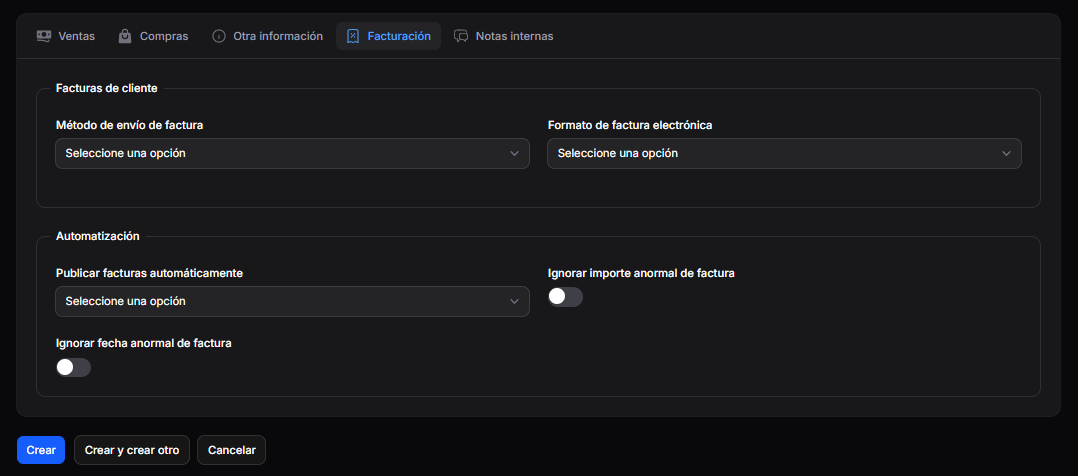
10. Review the Invoicing settings
The Invoicing tab includes two groups of options.
Customer invoices
Select the following, if applicable:
- Invoice Sending Method.
- Electronic Invoice Format.
Automation
Review the available options and configure them as appropriate:
- Auto-post Invoices.
- Ignore Abnormal Invoice Amount.
- Ignore Abnormal Invoice Date.
11. Add internal notes
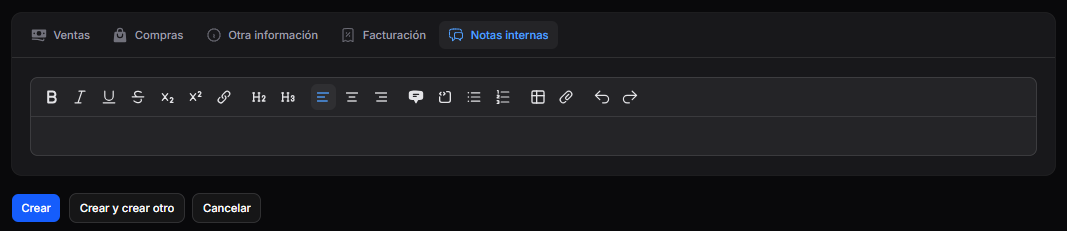
In the Internal Notes tab, enter any notes you want to record about the customer.
The editor allows you to format text and add lists, links, and other elements.
12. Create the customer
Once you have completed and reviewed the information, select one of the available options:
- Create: to save the customer.
- Create and create another: to save the customer and continue adding another.
- Cancel: to exit without creating the record.