Customer invoices
From this section, you can view your customers' invoices and create new documents.
Navigation path: Invoicing → Customers → Invoices.
1. Open the invoice list
Go to the Invoicing module, select Customers in the top menu, and then Invoices in the sidebar.
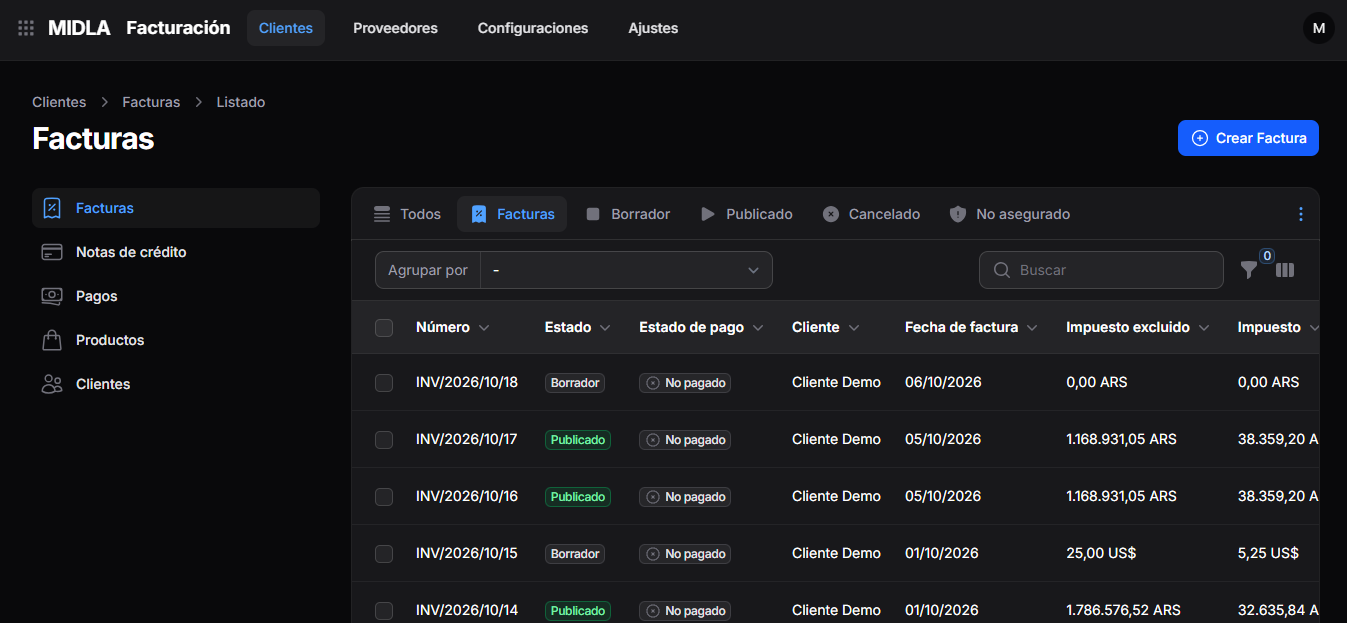
The list displays information such as Number, Status, Payment Status, Customer, Invoice Date, and amounts.
To browse the records, you can:
- Select the All, Invoices, Draft, Posted, Canceled, or Unsecured views.
- Use Search to find an invoice.
- Select Group by to organize the results.
- Use the filter and column icons to adjust the view.
2. Create an invoice
Click Create Invoice in the upper-right corner of the list.
3. Complete the general information
In the General section, complete:
- Customer: select the customer the invoice is for.
- Invoice Date: enter the document date.
- Due Date: enter the invoice's due date.
- Payment Terms: select the terms agreed with the customer.
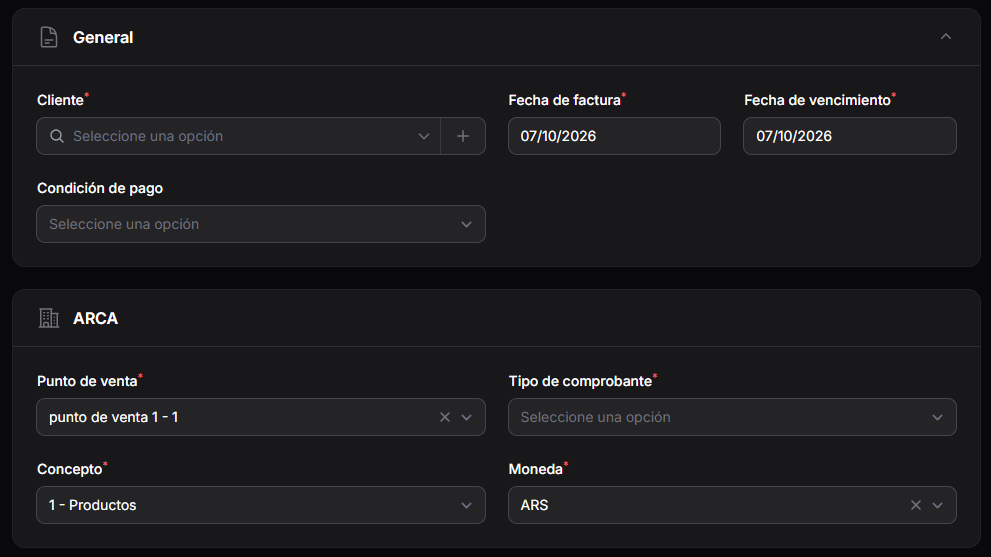
Review the prefilled dates and adjust them as needed.
4. Complete the ARCA details
In the ARCA section, select:
- Point of Sale: the corresponding point of sale.
- Document Type: the type of document you want to record.
- Concept: the concept of the operation.
- Currency: the invoice currency.
To use the point of sale, first configure ARCA under Settings. The procedure is explained in the ARCA Configuration guide.
5. Add products
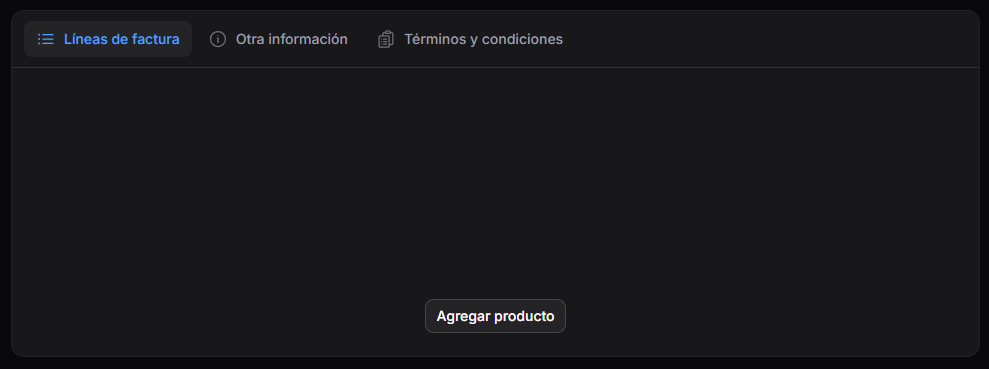
Go to the Invoice Lines tab and click Add Product to start adding the document's products or services.
6. Complete Other Information
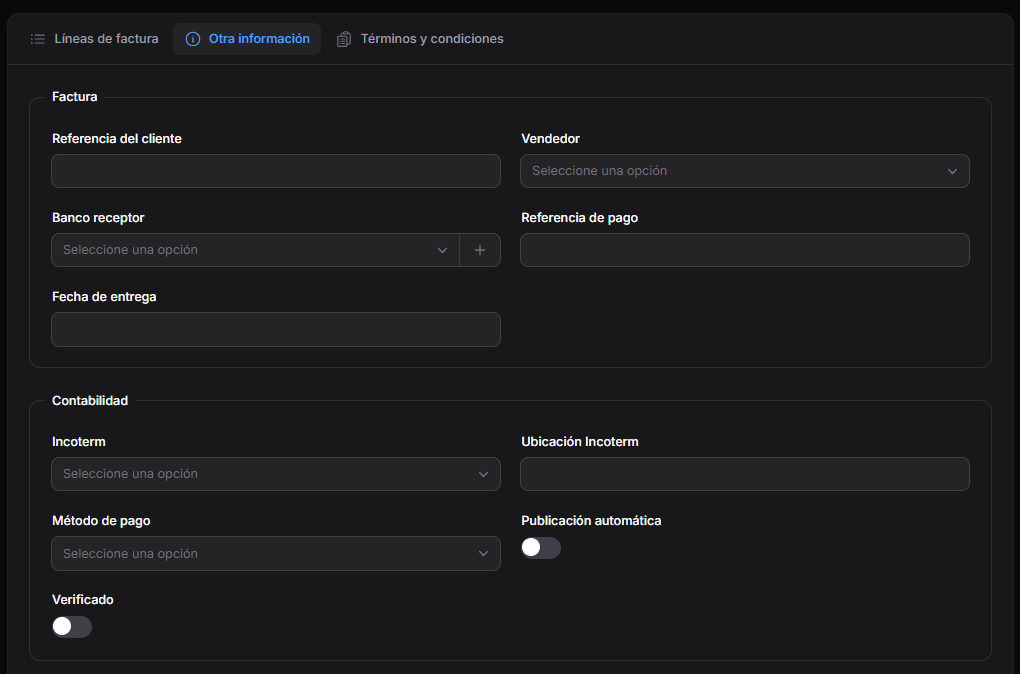
Go to the Other Information tab and complete the applicable details.
Invoice
- Customer Reference: enter a reference associated with the customer.
- Salesperson: select the appropriate salesperson.
- Recipient Bank: select the appropriate bank.
- Payment Reference: add a payment-related reference.
- Delivery Date: enter the delivery date, if applicable.
Accounting
- Incoterm: select the appropriate Incoterm, if applicable.
- Incoterm Location: enter the associated location.
- Payment Method: select the appropriate method.
- Auto-post: review whether this option should be enabled.
- Checked: review the status of this option.
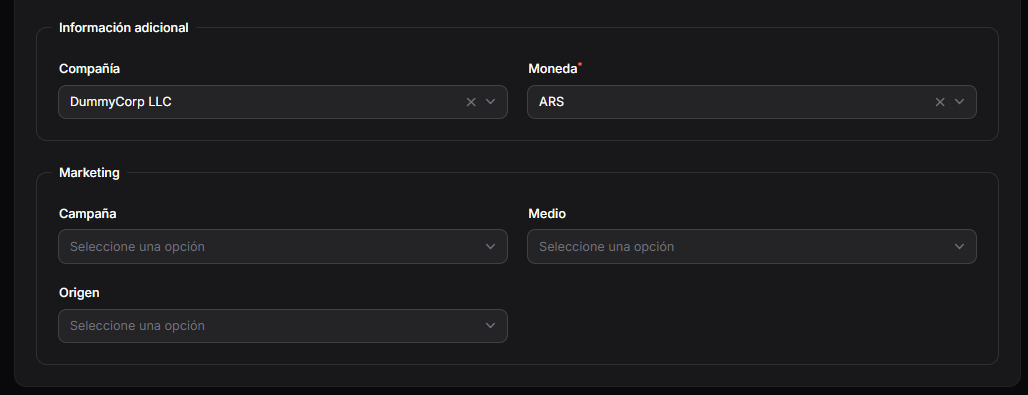
Additional information
Review the selected Company and Currency.
Marketing
If applicable, select the Campaign, Medium, and Source.
7. Add terms and conditions
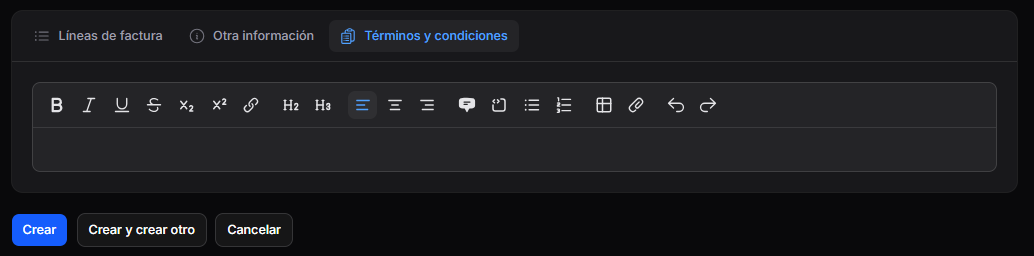
In the Terms and Conditions tab, enter the text you want to include.
The editor allows you to format the content and add lists, links, and other elements.
8. Create the record
Review the invoice details and complete the fields marked with an asterisk.
Then select:
- Create: to create the invoice.
- Create and create another: to create the invoice and continue adding another.
- Cancel: to exit without creating the record.