Attributes
From Attributes, you can create attributes, define their type, and add options with their additional prices.
Navigation path:
Invoicing → Settings → Attributes
How to create an attribute
1. Open Attributes
From the Invoicing module, go to Settings → Attributes.
The list of registered attributes appears.
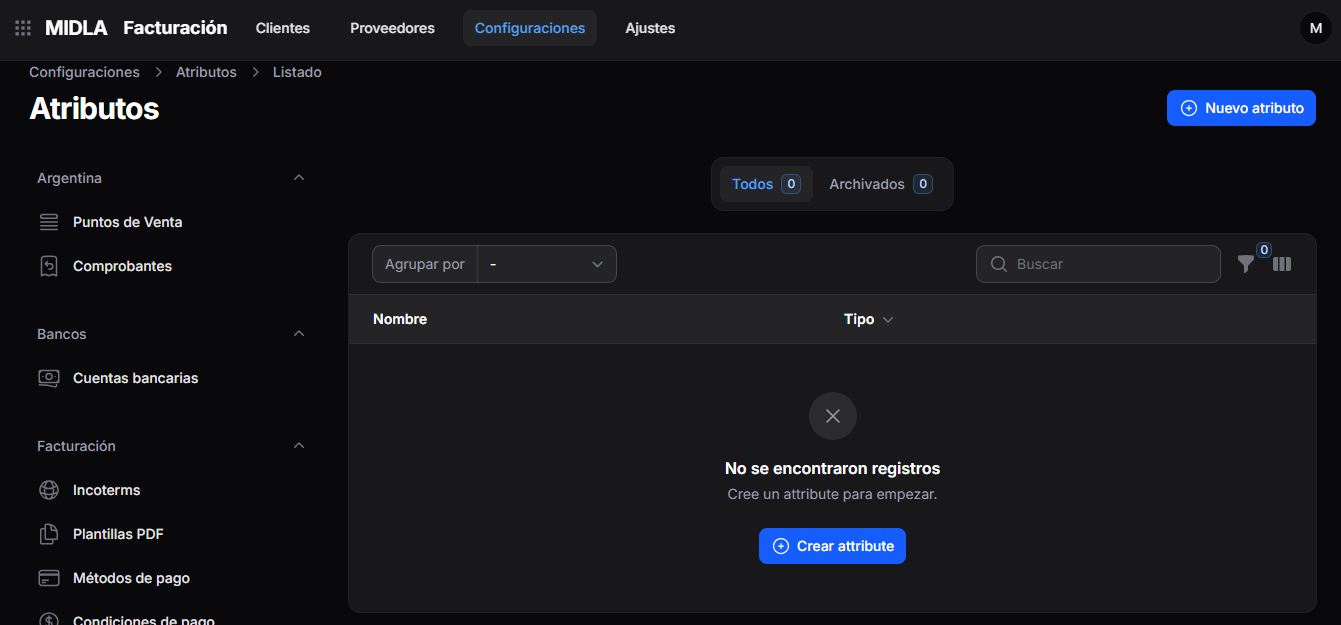
The list displays:
- Name
- Type
Use the Search field to find a record or the Group by option to organize the list.
You can also view the All and Archived tabs.
2. Select New Attribute
In the upper-right corner, click New Attribute.
If the list is empty, you can also select Create Attribute in the center of the screen.
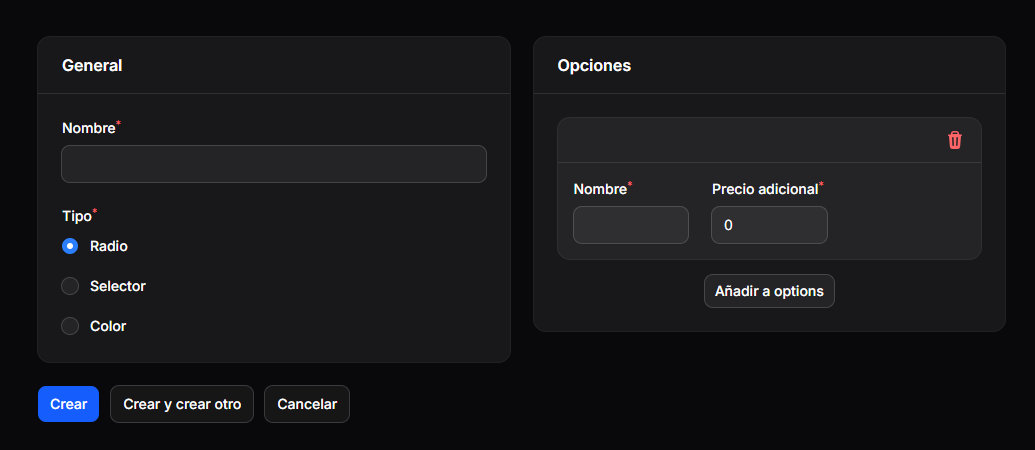
The creation form opens.
3. Complete the general information
In the General section, complete:
- Name: enter a name that identifies the attribute.
- Type: select one of the available options: Radio, Select, or Color.
Both fields are required.
4. Add the options
In the Options section, complete the details for each option:
- Name: enter the option name.
- Additional Price: enter the corresponding additional amount. If the option has no additional cost, leave the value at 0.
To add more options, select Add to options.
To remove an option from the form, use the trash icon in its box.
For example, you can create an attribute called Size and add options such as S, M, and L, specifying an additional price for each one if applicable.
5. Save the attribute
Once you have completed the general information and options, select:
- Create: saves the attribute.
- Create and create another: saves the record and allows you to create a new one.
- Cancel: cancels the creation.
Result
The attribute is registered in MIDLA with its name, type, and options.
You can view it under Invoicing → Settings → Attributes.