Currencies
From Currencies, you can view and register currencies, configure their decimal places and rounding, and set their status.
Navigation path:
Invoicing → Settings → Currencies
How to create a currency
1. Open Currencies
From the Invoicing module, go to Settings and select Currencies.
The list of registered currencies appears.
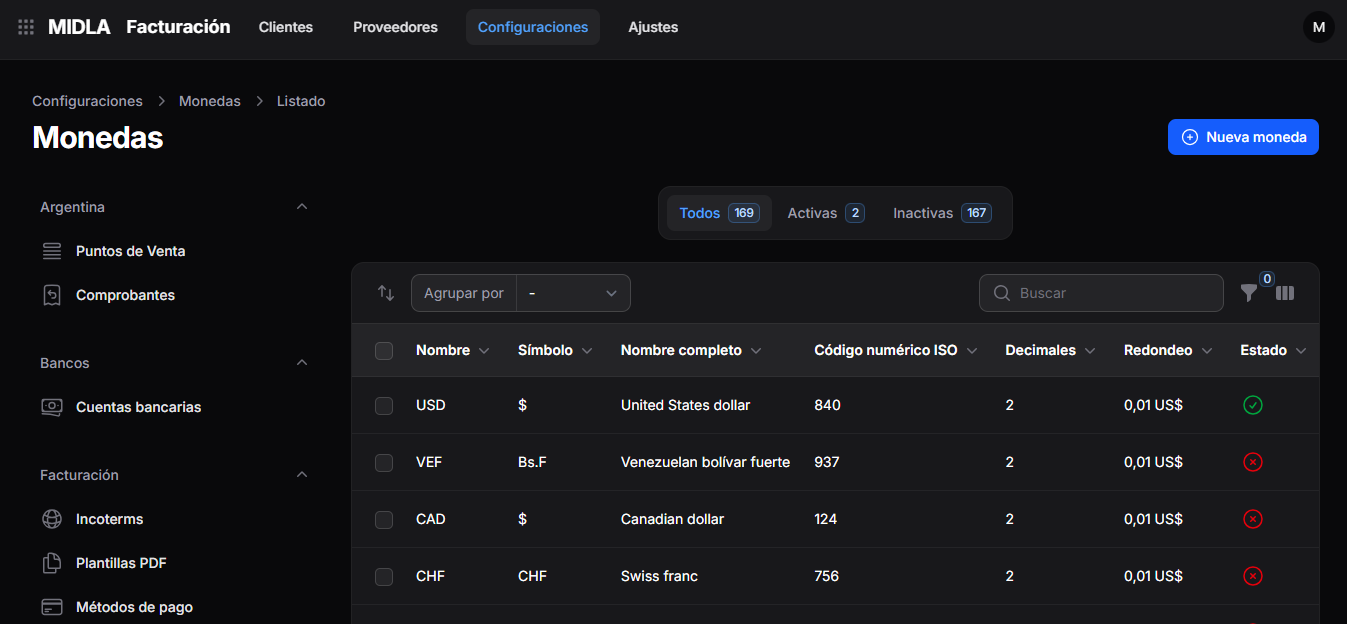
The list displays:
- Name
- Symbol
- Full Name
- ISO Numeric Code
- Decimal Places
- Rounding
- Status
Use the All, Active, and Inactive tabs to view currencies by status.
You can also use the Search field or the Group by option to find and organize records.
2. Select New Currency
In the upper-right corner, click New Currency.
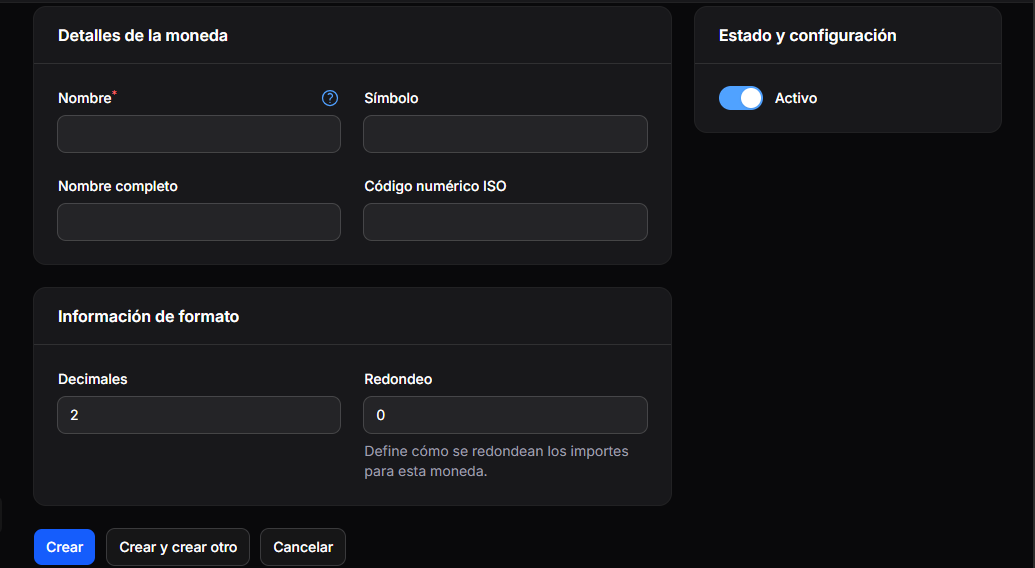
The creation form opens.
3. Complete the currency details
In the Currency Details section, complete:
- Name: enter the currency identifier, such as USD. This field is required.
- Symbol: enter the corresponding symbol.
- Full Name: enter the full currency name.
- ISO Numeric Code: enter the corresponding numeric code.
4. Configure the format
In the Formatting Information section, complete:
- Decimal Places: specify the number of decimal places.
- Rounding: configure how amounts are rounded for this currency.
Review the Decimal Places and Rounding values before saving the currency.
5. Set the status
In the Status and Settings section, use the Active toggle to set the currency's status.
- Enabled: the currency is active.
- Disabled: the currency is inactive.
6. Save the currency
Once you have completed the details, select one of the following options:
- Create: saves the currency.
- Create and create another: saves the record and allows you to create a new one.
- Cancel: cancels the creation.
Result
The currency is registered in MIDLA with its details, format, and status.
You can view it under Invoicing → Settings → Currencies.