Points of sale
From Points of Sale, you can register and view the points of sale you will use for invoicing in MIDLA.
Navigation path:
Invoicing → Settings → Points of Sale
To create a point of sale with Electronic Invoicing, you must first configure ARCA under Settings.
This procedure is explained step by step in the ARCA Configuration guide.
How to create a point of sale
1. Open Points of Sale
From the Invoicing module, go to:
Settings → Points of Sale
The list of registered points of sale appears.
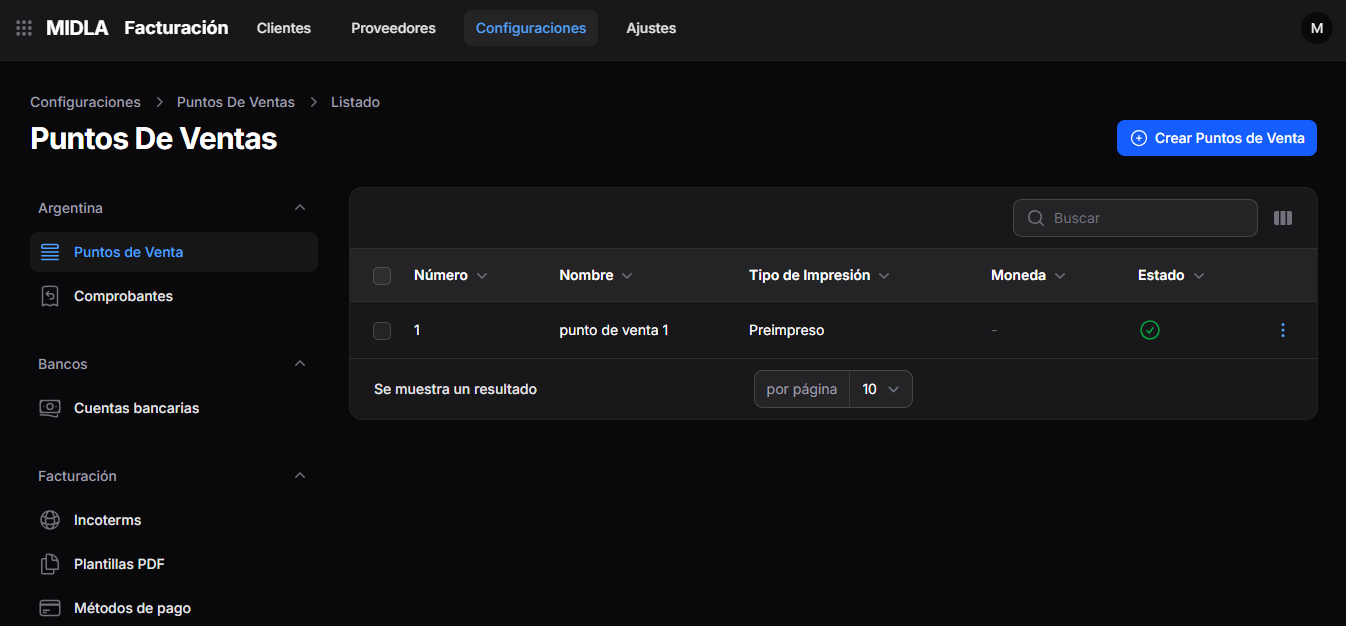
The list displays:
- Number
- Name
- Printing Type
- Currency
- Status
Use the Search field to find a point of sale.
2. Select Create Points of Sale
In the upper-right corner, click Create Points of Sale.
The form for registering a new point of sale opens.
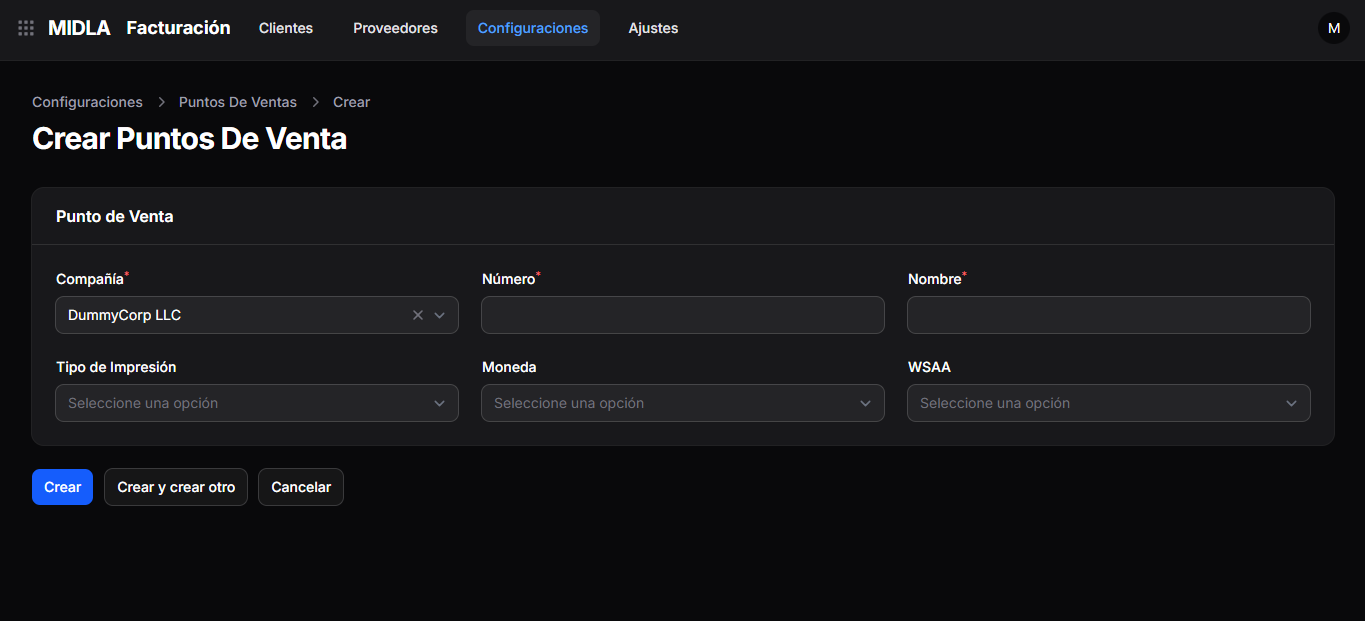
3. Complete the details
Complete the following fields:
- Company: select the company the point of sale belongs to.
- Number: enter the point of sale number.
- Name: enter a name that identifies it.
- Printing Type: select the appropriate printing type.
- Currency: select the currency you will use.
- WSAA: for electronic invoicing, select the WSAA previously configured for that company.
Fields marked with an asterisk (*) are required.
If you select Electronic Invoicing, verify that the point of sale number matches the one registered with ARCA.
Under WSAA, select the record configured by following the ARCA Configuration guide.
4. Create the point of sale
Once you have completed the details, review the information and select:
- Create: saves the point of sale.
- Create and create another: saves the point of sale and allows you to register a new one.
- Cancel: cancels the creation.
Result
The point of sale is registered in MIDLA and can be viewed under Invoicing → Settings → Points of Sale.