Vendor payments
From this section, you can view recorded payments and create new transactions associated with your vendors.
Navigation path: Invoicing → Vendors → Payments.
1. Open the payment list
Go to the Invoicing module, select Vendors in the top menu, and then Payments in the sidebar.
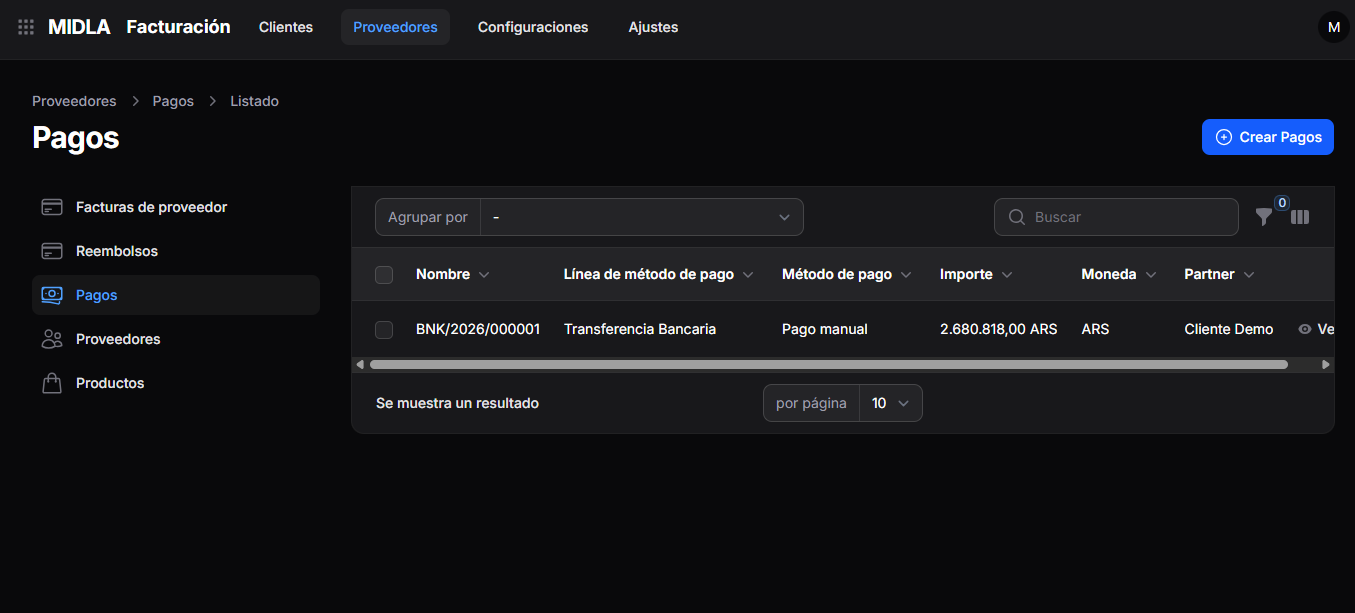
The list displays the following details:
- Name: payment identifier.
- Payment Method Line.
- Payment Method.
- Amount.
- Currency.
- Partner: third party associated with the payment.
2. Search and organize payments
At the top of the list, you can:
- Use Search to find a record.
- Select Group by to organize the results.
- Use the filter icon to refine the search.
- Use the column icon to configure the view.
At the bottom, you can choose how many records to display per page.
3. Create a payment
Click Create Payments in the upper-right corner.
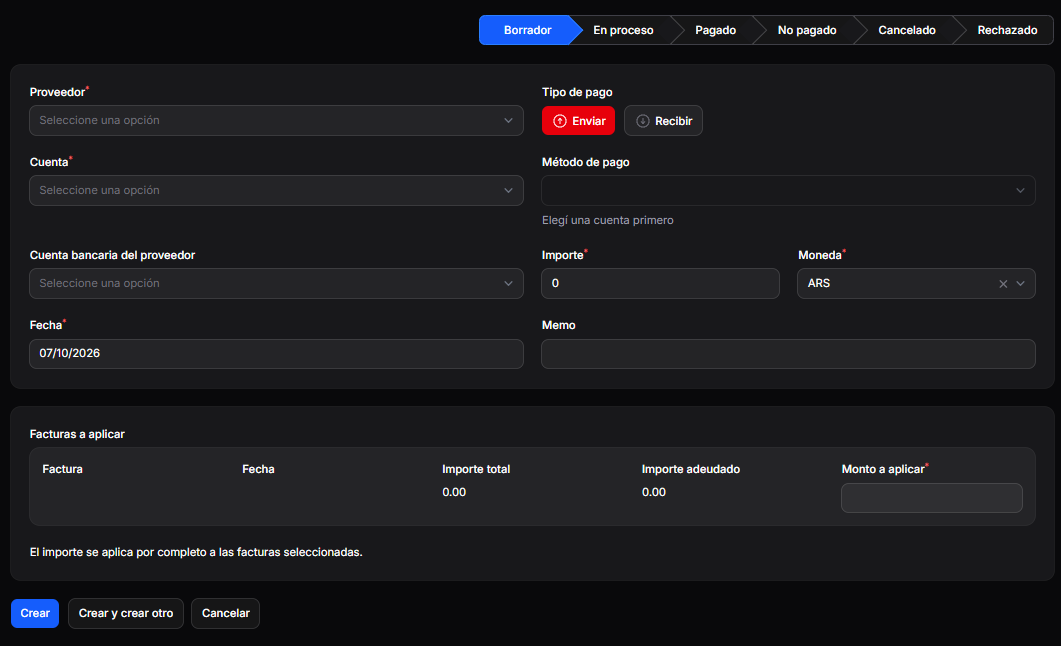
The entry form opens, initially showing Draft status.
4. Complete the payment details
Complete the following fields:
- Vendor: select the vendor associated with the transaction.
- Account: select the account from which you will record the payment.
- Vendor Bank Account: select the corresponding bank account, if applicable.
- Date: enter the transaction date.
- Payment Type: select Send or Receive, as appropriate.
- Payment Method: select the method you will use.
- Amount: enter the transaction amount.
- Currency: select the appropriate currency.
- Memo: add a reference or description, if applicable.
Select the Account first to be able to choose the Payment Method. Fields marked with an asterisk are required.
5. Apply the payment to bills
In the Bills to Apply section, review the bills corresponding to the transaction.
For each bill, the section displays:
- Bill.
- Date.
- Total Amount.
- Amount Due.
- Amount to Apply.
Enter the corresponding Amount to Apply and verify the amounts before creating the payment.
The form indicates that the full payment amount is applied to the selected bills.
6. Create the record
Once you have reviewed the details, select one of the available options:
- Create: to create the payment.
- Create and create another: to create the payment and continue adding another.
- Cancel: to exit the form without creating the record.