Teams
What are Teams?
The Teams section allows managing support teams responsible for Ticket handling within the Helpdesk module.Each team represents a workgroup where Tickets, members, and SLA policies can be assigned to organize incident management.
Team Management
Accessing the Teams List
To access the Teams list, go to:Helpdesk → Configurations → Teams
Once inside, the main list of registered teams will be displayed.
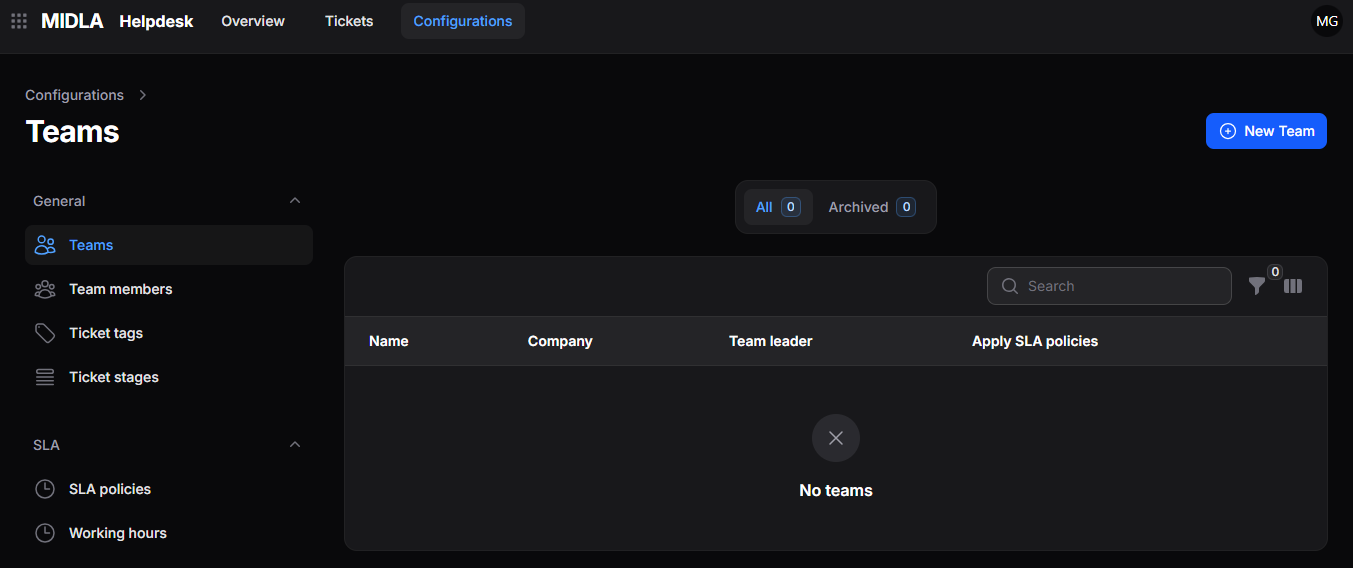
Figure 1. Teams list
List Views
The Teams list provides different views to organize records based on their status.The available views are:
- All: displays all active teams.
- Archived: displays deleted teams.
List Tools
The Teams list includes tools that allow users to quickly locate and organize information.Allows locating specific teams using search criteria.
Allows applying filters to display teams under specific conditions.
Allows selecting and reorganizing the visible columns in the list.
Create a Team
To create a new team:
- Go to Helpdesk → Configurations → Teams.
- Click New Team.
- Complete the required information in the creation form.
- Click Create to save the record.
Creation Form
When selecting New Team, the creation form will be displayed.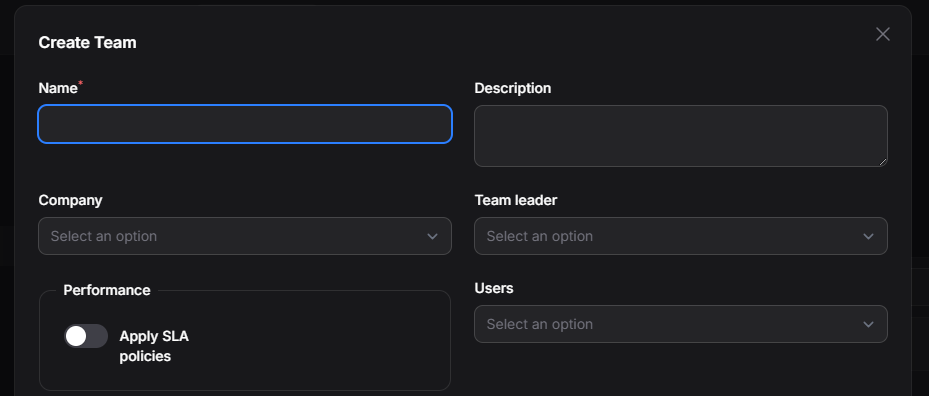
Figure 2. Team creation form
General Information
The General Information section contains the main data required to identify and configure the team.
- Name: team name.
- Description: internal description of the team.
- Company: associated company.
- Team Leader: user responsible for the team.
- Users: users that will be part of the team.
Performance
The Performance section allows configuring SLA policies for the team.
- Apply SLA Policies: enables SLA policies for Tickets managed by this team.
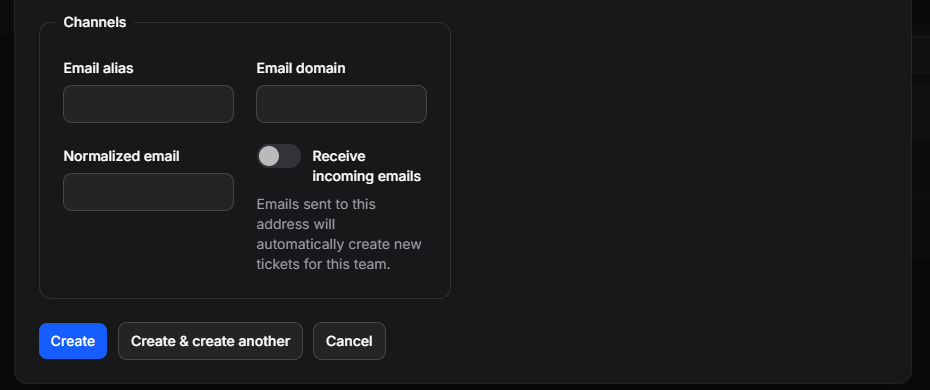
Figure 3. Team creation form
Channels
The Channels section allows configuring automatic Ticket reception channels via email.
- Email Alias: email alias for Ticket reception.
- Email Domain: associated email domain.
- Normalized Email: full normalized email address.
- Receive Incoming Emails: enables automatic Ticket creation from incoming emails.
Available Actions
- Create: saves the team and completes the creation process.
- Create and create another: saves the current team and allows creating a new one.
- Cancel: cancels the operation and returns to the list.
Actions on a Team
Once a team has been created, its information can be accessed from the list to view, edit, or delete the record.

Figure 4. Available actions on a Team
View a Team
The View option allows access to the complete details of a team.Once accessed, all registered information will be displayed, including general data, assigned members, SLA configuration, and associated channels.
Edit a Team
The Edit option allows modifying the information registered in the team.From this action, it is possible to update data such as name, description, company, team leader, assigned users, SLA policies, and reception channels.
Delete a Team
The Delete option removes a team from the main list.Once deleted, the team will remain available in the Archived view, where it can be restored or permanently deleted.
Teams deleted using Delete permanently cannot be recovered later.