Team Members
What are Team Members?
The Team Members section allows managing users assigned to different teams within the Helpdesk module.Each record links one or more users to a specific team, making work organization and Ticket distribution easier.
Team Member Management
Accessing the Team Members List
To access the Team Members list, go to:Helpdesk → Configurations → Team Members
Once inside, the main list of users assigned to the different support teams will be displayed.
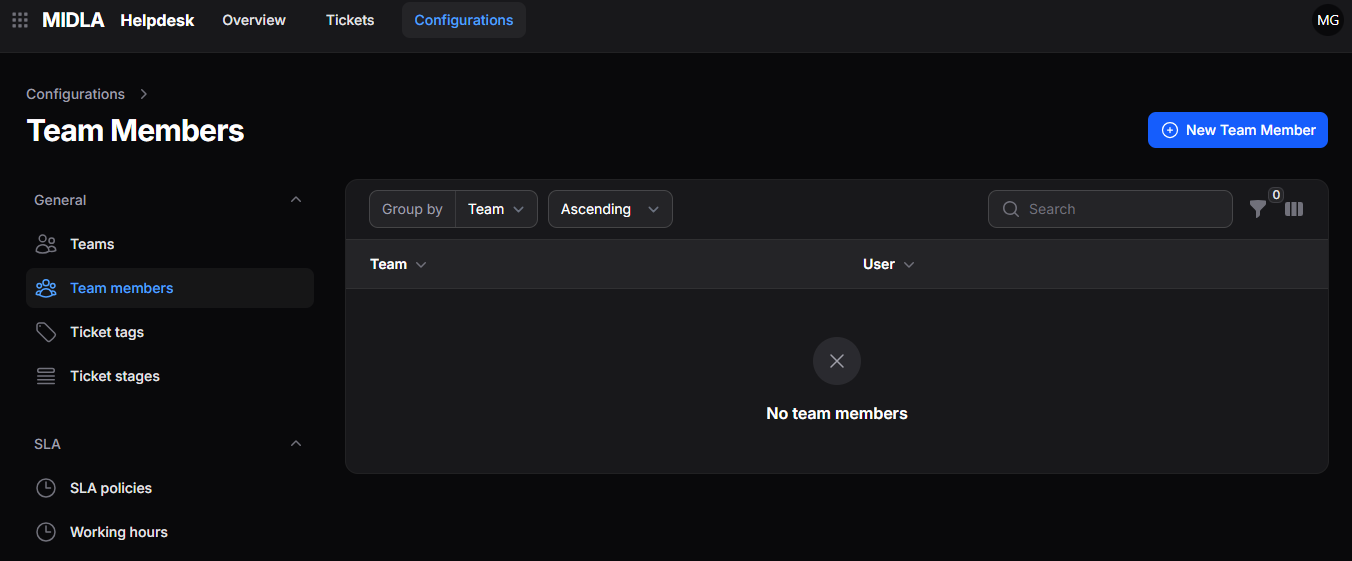
Figure 1. Team Members list
List Tools
The Team Members list includes tools to organize and locate assigned user records.Allows grouping records according to different criteria, such as team.
Allows sorting records in ascending or descending order.
Allows locating specific records within the list.
Allows applying filters to display specific information.
Allows selecting and reorganizing the visible columns within the list.
Create a Team Member
To create a new record:
- Go to Helpdesk → Configurations → Team Members.
- Click New Team Member.
- Complete the required information in the creation form.
- Click Create to save the record.
Creation Form
When selecting New Team Member, the form will be displayed where the required data must be completed to assign users to a team.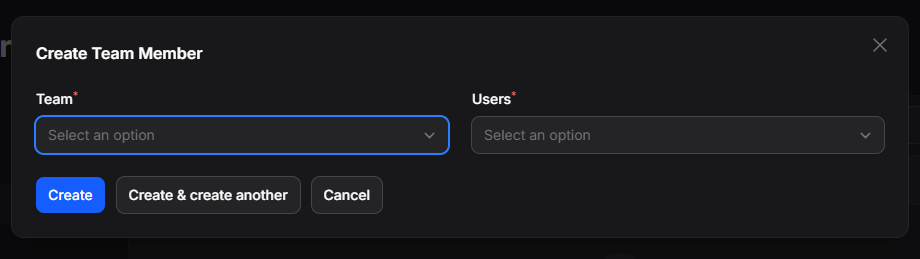
Figure 2. Team Members creation form
General Information
The General Information section contains the data required to link users to a team.
Available Fields
- Team: allows selecting the team to which users will be assigned.
- Users: allows selecting one or more users who will be part of the team.
Available Actions
- Create: saves the assignment and completes the creation process.
- Create and create another: saves the current record and allows creating a new one.
- Cancel: cancels the operation and returns to the Team Members list.
Actions on a Team Member
Once a record has been created, it will be possible to access its information from the list to view, edit, or delete it.
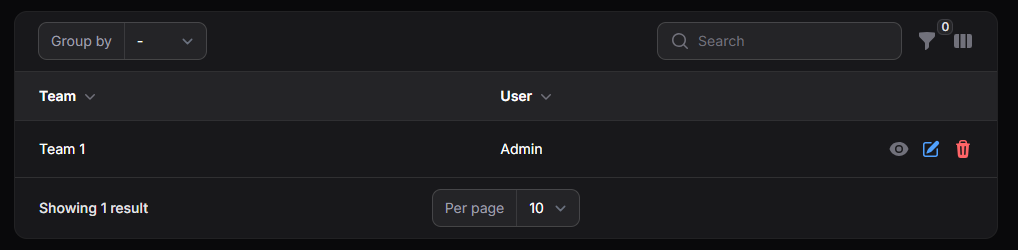
Figure 3. Available actions on Team Members
View a Team Member
The View option allows access to the complete details of the record.Once accessed, the registered information will be displayed, including the associated team and assigned users.
Edit a Team Member
The Edit option allows modifying the registered information.From this action, it is possible to update the team or modify the assigned users.
Delete a Team Member
The Delete option allows removing the user assignment from a team.Once deleted, users will no longer be part of the corresponding team and will not be able to receive Tickets assigned from that team.