Working Hours
What are Working Hours?
The Working Hours section allows defining the schedules used to calculate time within SLA policies.These schedules determine which periods are considered effective working time for measuring compliance and deadlines.
Working Hours Management
Accessing the Working Hours List
To access the Working Hours list, go to:Helpdesk → Configurations → Working Hours
Once inside, the main list of registered schedules will be displayed.
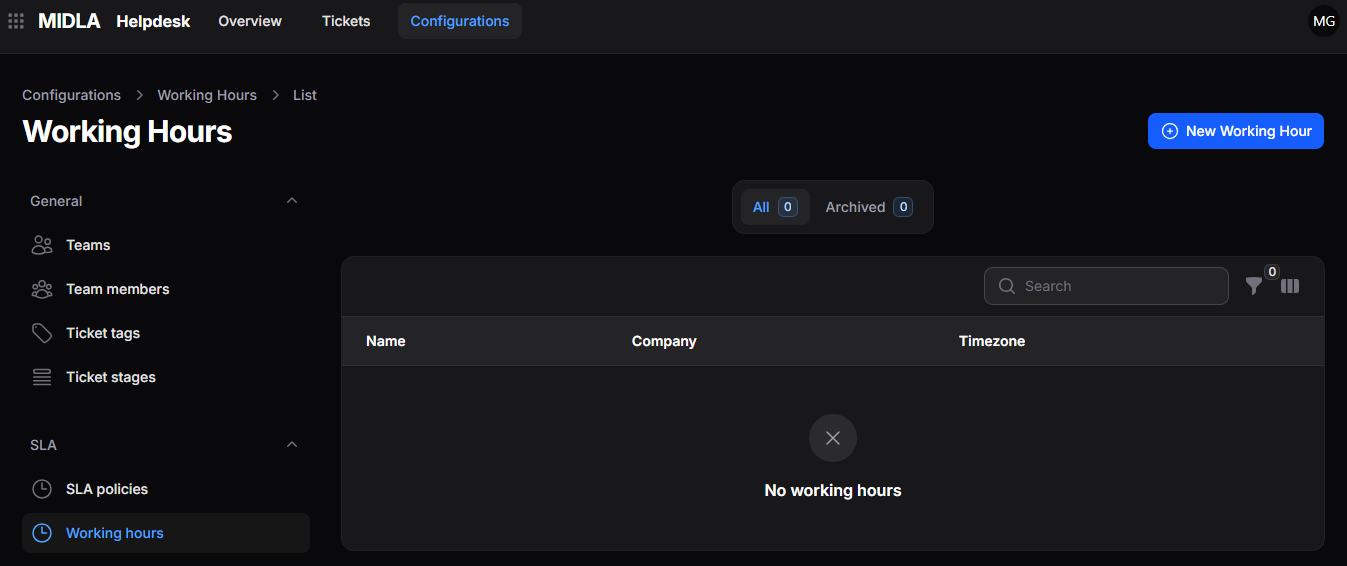
Figure 1. Working Hours list
List Views
The Working Hours list provides quick views to organize records according to their status.The available views are:
- All: displays all active schedules.
- Archived: displays archived schedules.
List Tools
The Working Hours list includes tools to manage and organize records.Allows searching registered working hours.
Allows applying filters to the list.
Allows selecting and reorganizing visible columns.
Create Working Hours
To create new working hours:
- Go to Helpdesk → Configurations → Working Hours.
- Click New Working Hours.
- Complete the required information in the form.
- Click Create to save the record.
Creation Form
When selecting New Working Hours, the form will be displayed where the required data must be completed to register new working hours.General Information

Figure 2. Working Hours general information
Available Fields
- Name: working hours name.
- Company: associated company.
- Time Zone: applied time zone.
Configuration
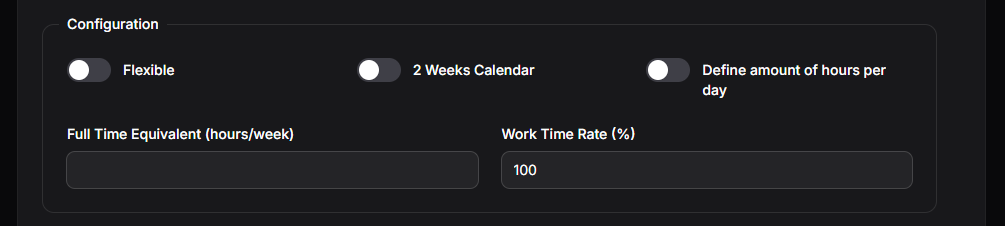
Figure 3. Working Hours configuration
Available Fields
- Flexible: allows defining flexible schedules.
- Two-week Calendar: allows configuring an alternating two-week calendar.
- Define Number of Hours per Day: allows manually setting the hours worked per day.
- Full-Time Equivalent: total number of weekly hours.
- Work Time Rate: percentage of effective working time.
Working Hours
The Working Hours section allows defining specific work periods.
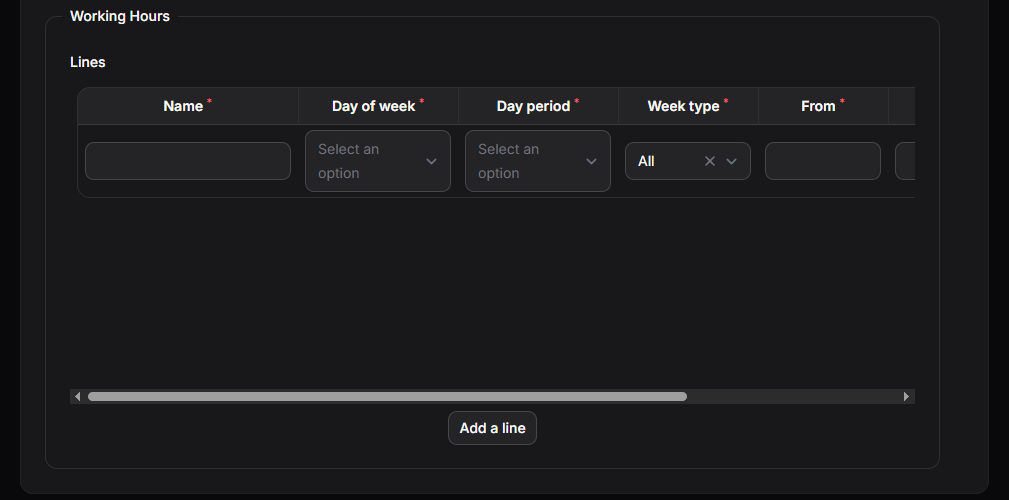
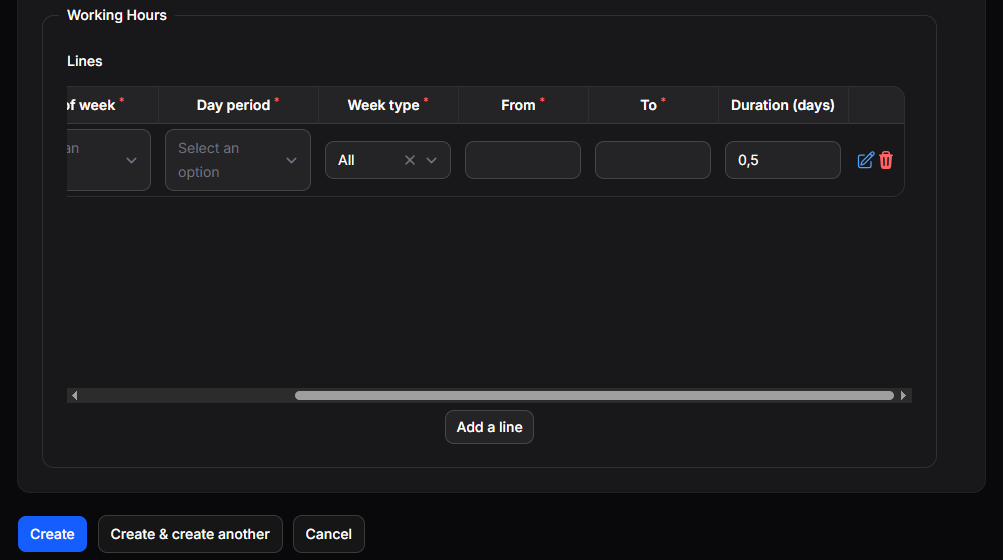
Figure 4. Working Hours line configuration
Available Fields
- Name: identifies the schedule line.
- Day of Week: corresponding day.
- Day Period: configured period within the day.
- Week Type: applicable week type.
- From: start time.
- To: end time.
- Duration: total configured duration.
Available Actions
- Add Line: adds new schedule lines.
- Create: saves the working hours.
- Create and create another: saves the current schedule and allows creating another one.
- Cancel: cancels the operation.
Actions on Working Hours
Once working hours have been created, it will be possible to access their information from the list to view, edit, or delete the record.
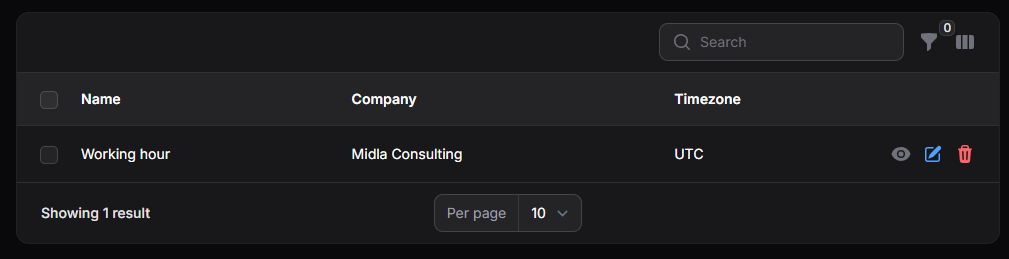
Figure 5. Created Working Hours list
View Working Hours
The View option allows access to the complete details of working hours.Once accessed, all registered information will be displayed, including general configuration and schedule lines.
Edit Working Hours
The Edit option allows modifying the information registered in the working hours.From this action, it is possible to update general settings and schedule lines.
Delete Working Hours
The Delete option allows removing working hours from the system.Once deleted, the schedule will remain available in the Archived view, where it can be restored or permanently deleted.
Working hours deleted using Delete permanently cannot be recovered later.