Introduction
This manual describes the functionalities available in Midla Projects and serves as a guide for managing, planning, and tracking projects within the system.
What is the Projects module?
The Projects module allows planning, organizing, and tracking projects, tasks, and activities within a single platform.System Objective
The objective of the Projects module is to optimize project management through the organization of tasks, resources, and execution times.This improves team coordination, facilitates activity tracking, and maintains control over the overall progress of each project.
System Navigation
Projects
The Projects section allows creating, organizing, and managing projects within the system.
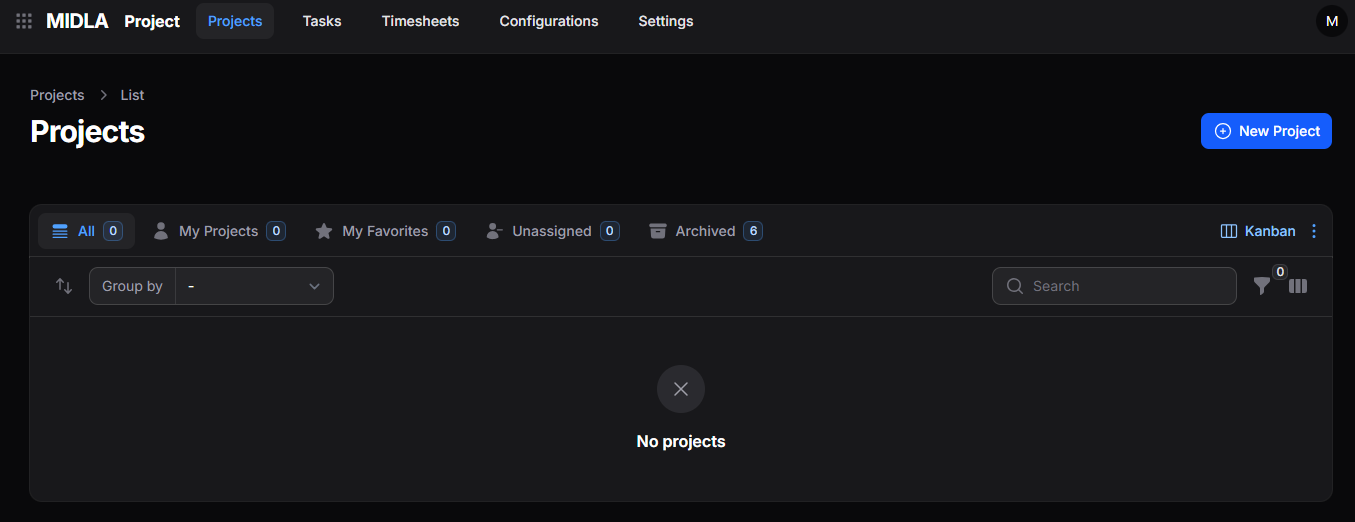
Figure 1. Main interface of the Projects section
From this section it is possible to:
Allows creating and registering new projects within the system.
Makes it easier to review ongoing or archived projects for tracking or recovery.
Allows assigning responsible users and updating each project’s status according to its progress.
Facilitates project visualization and organization according to management needs.
Tasks
The Tasks section allows viewing and managing tasks associated with projects.
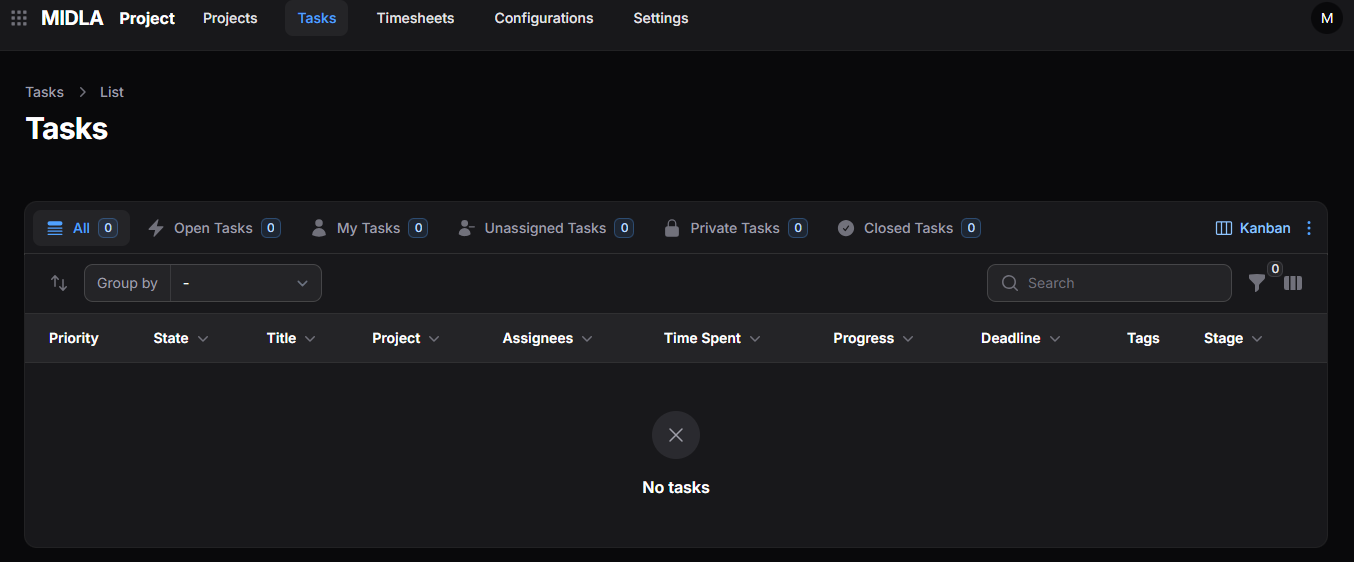
Figure 2. Main interface of the Tasks section
From this section it is possible to:
Allows viewing all tasks created across the different projects.
Facilitates reviewing tasks assigned to the current user for better tracking.
Allows organizing and reviewing tasks according to their status or visibility.
Makes it easier to update task data, assignees, or configurations.
Allows removing tasks that are no longer part of the active workflow.
Helps track progress, logged hours, and due dates for each task.
Timesheets
The Timesheets section allows viewing and managing time records associated with tasks and projects.
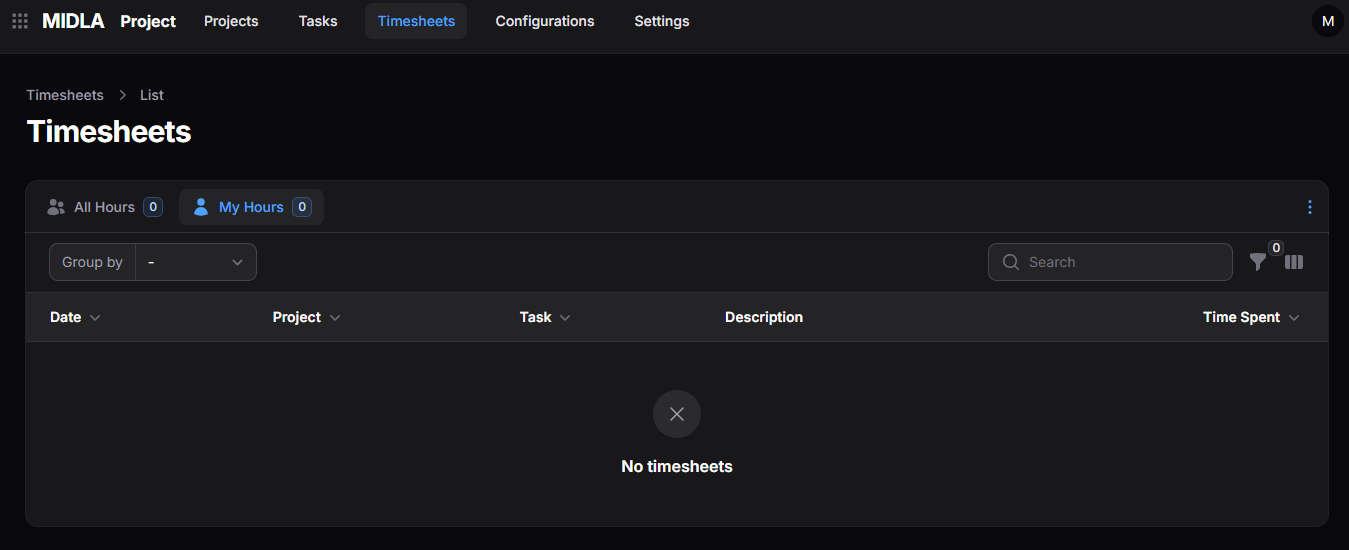
Figure 3. Main interface of the Timesheets section
From this section it is possible to:
Allows viewing all time records entered into the system.
Allows consulting only the records associated with the current user through the My Timesheets view.
Makes it easier to locate time records through keywords or related information.
Allows organizing records according to different consultation criteria.
Helps monitor time invested in tasks and projects.
Configurations
The Configurations section gathers complementary settings for project management.
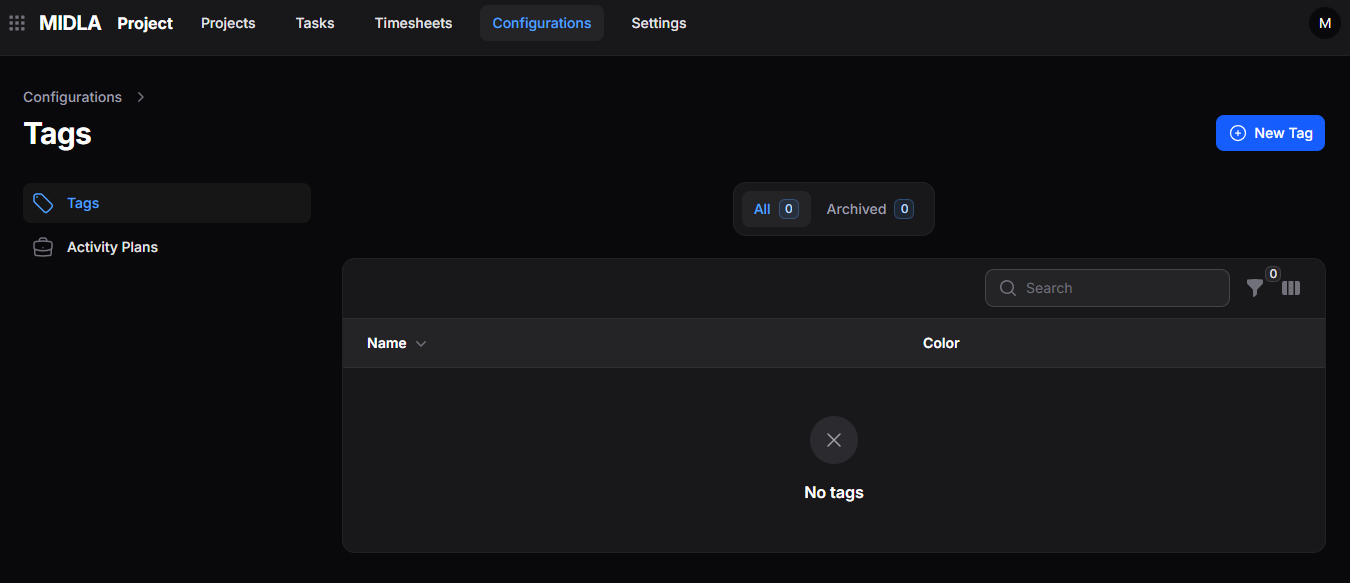
Figure 4. Main interface of the Configurations section
From this section it is possible to:
Allows creating and managing tags to classify and organize projects and tasks within the system.
Facilitates creating and managing predefined activity plans to automate follow-ups and recurring processes.
This section provides a general overview of how the Midla Projects module works. To explore each area, its tools, and workflows in depth, continue with the following sections of the documentation.