Chatter
Chatter keeps messages, internal notes, activities, and files connected to a specific record. It gives users one place to review interactions and follow up on work related to that record.
In this guide
- Access Chatter
- Send a message
- Log an internal note
- Schedule an activity
- Manage attachments
- Manage followers
- Filter and pin history items
General workflow
- Open a record in the relevant module and select the Chatter icon.
- Choose whether to send a message, log a note, or schedule an activity.
- Review the resulting entry in the record's history.
- Use attachments, followers, filters, and pins to manage the information as needed.
Access Chatter
Chatter is available within records across different MIDLA modules. Open the relevant module, select a record, and click the Chatter icon in the upper-right corner.

Figure 1. Chatter access icon
The Chatter panel displays the record's history and the tools for adding new interactions.
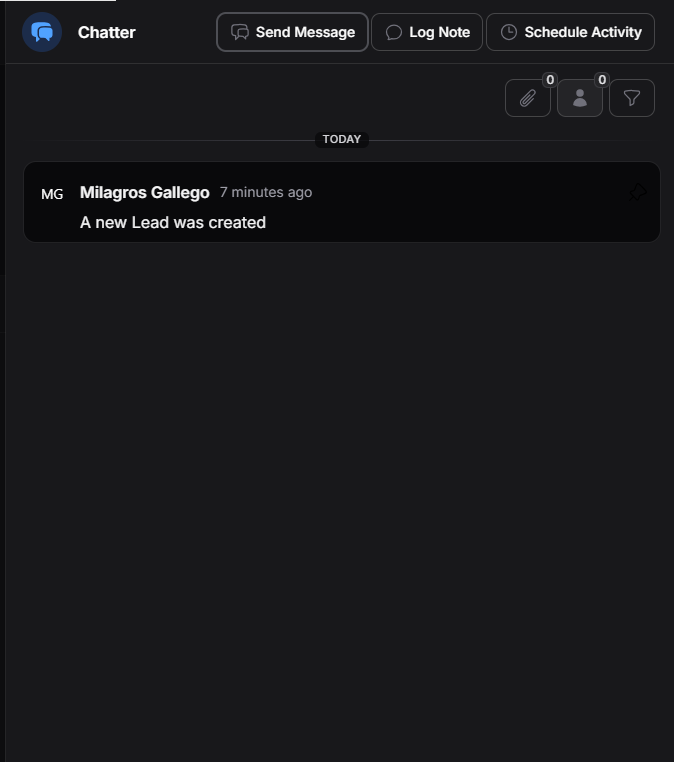
Figure 2. Chatter view
New messages, notes, and activities appear in this history as they are recorded.
Chatter actions
The main actions let you send a message, log an internal note, or schedule an activity for the current record.

Figure 3. Available Chatter actions
Send a message
Select Send Message to compose a message linked to the current record.
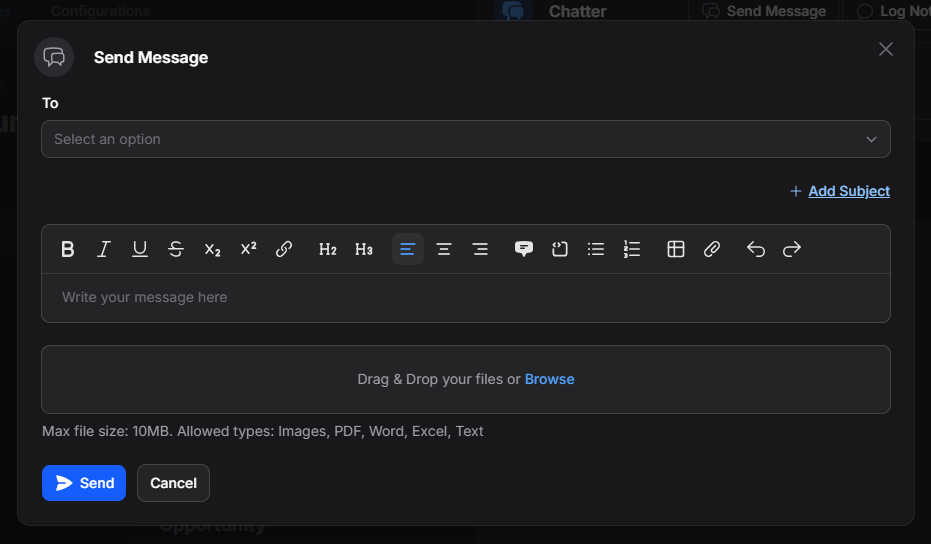
Figure 4. Send Message form
| Field | What it does |
|---|---|
| To | Selects the recipient. |
| Add Subject | Adds a subject to the message. |
| Message Body | Contains the message text. |
| Attachments | Adds documents or other files. |
Select Send to send the message and record it in the history, or Cancel to close the form without sending. A sent message appears with details such as sender, recipient, date, and content.
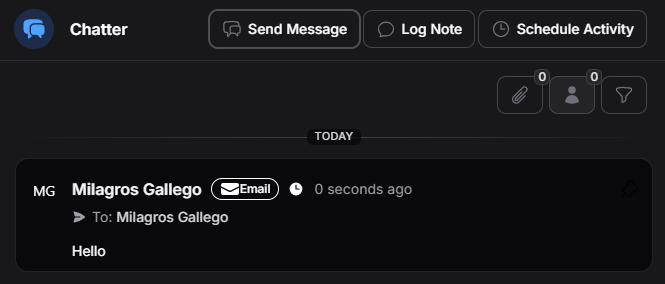
Figure 5. Message in the record history
Log an internal note
Select Log Note to save observations or other information for internal follow-up on the current record.
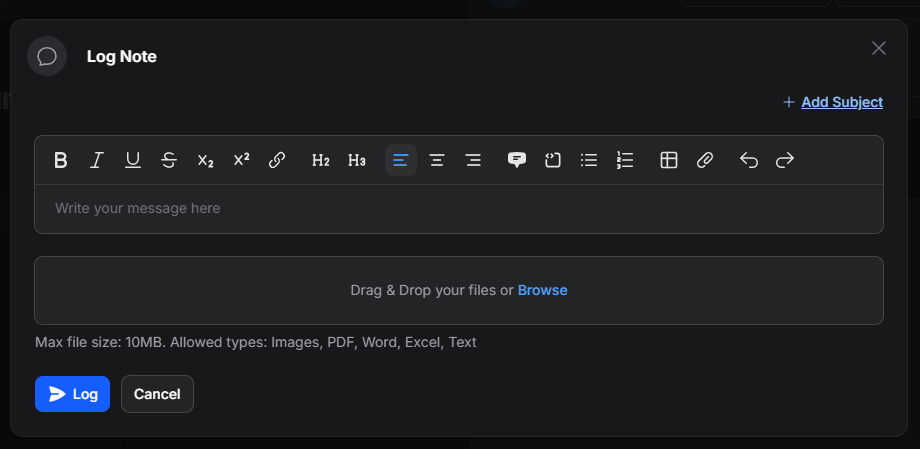
Figure 6. Log Note form
| Field | What it does |
|---|---|
| Add Subject | Adds a subject to the note. |
| Note Body | Contains the note text. |
| Attachments | Adds files to the note. |
Select Log to save the note in the history, or Cancel to close the form without saving. The saved entry shows details such as the user, date, and content.
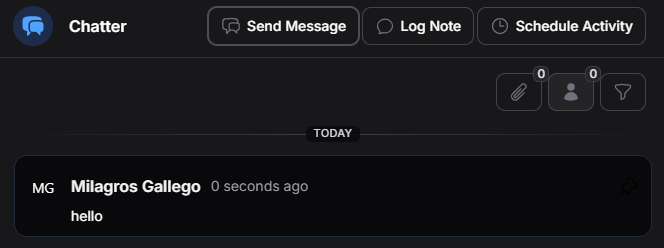
Figure 7. Note in the record history
Schedule an activity
Select Schedule Activity to create an activity linked to the current record.
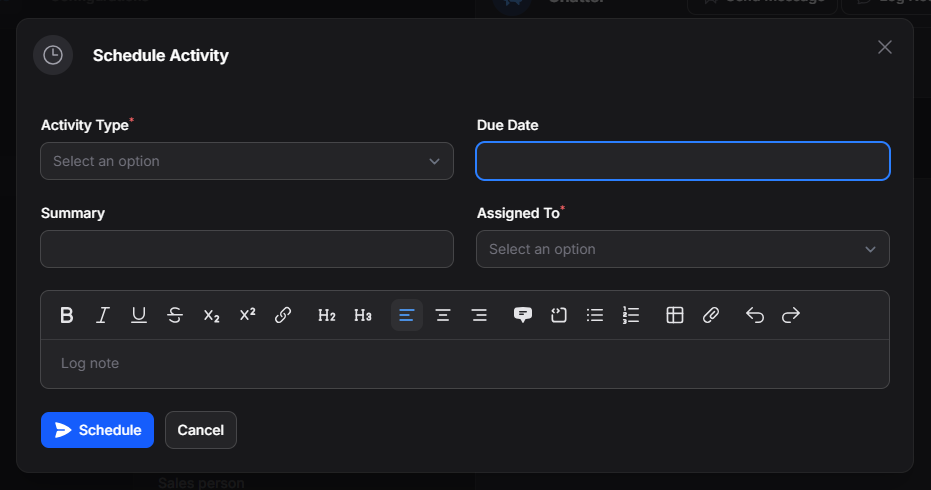
Figure 8. Activity scheduling form
The fields and actions in this form are also described in Activities → My Schedule. Once scheduled, the activity appears both in the Chatter history and in Activities → My Schedule.
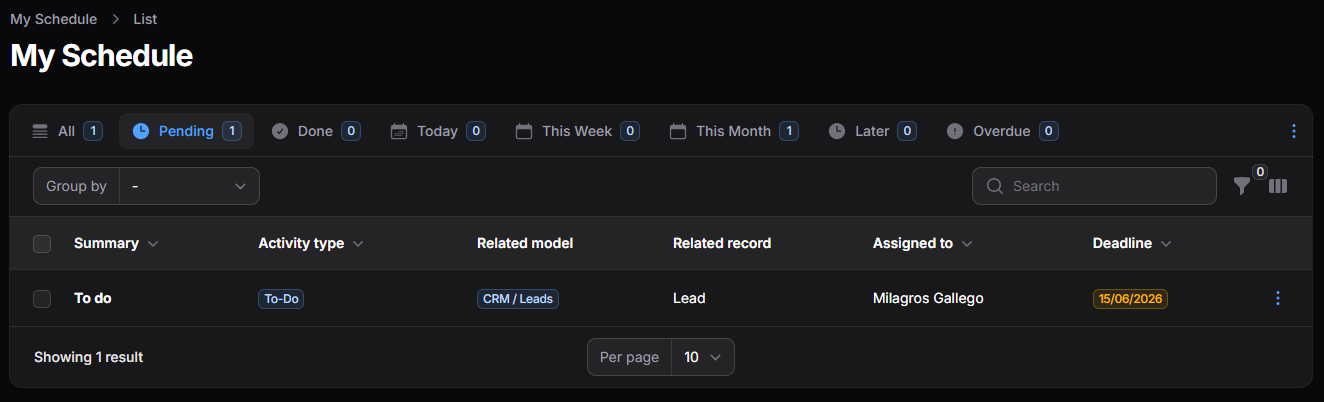
Figure 9. Activity in the record history
To manage a scheduled activity, open its Action Group (⋮) menu and choose Mark as Done, Edit Activity, or Cancel Activity.
Chatter tools
The additional tools help you manage files, followers, and the record history.

Figure 10. Chatter tools
Manage attachments
Use Attachments to upload files linked to the current record.
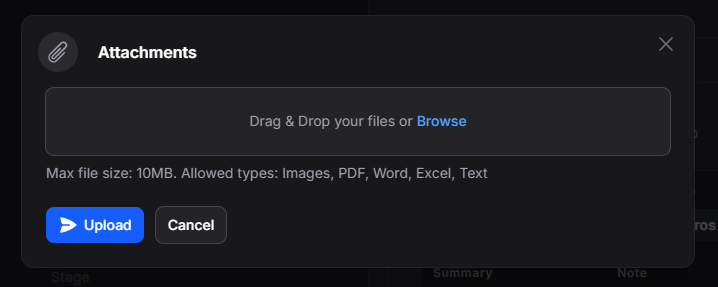
Figure 11. Uploading an attachment
Select Upload File to add a file or Cancel to close the form without attaching one. Uploaded files remain linked to the record and can be viewed from its Chatter history.
Manage followers
Use Followers to add users who follow the current record.
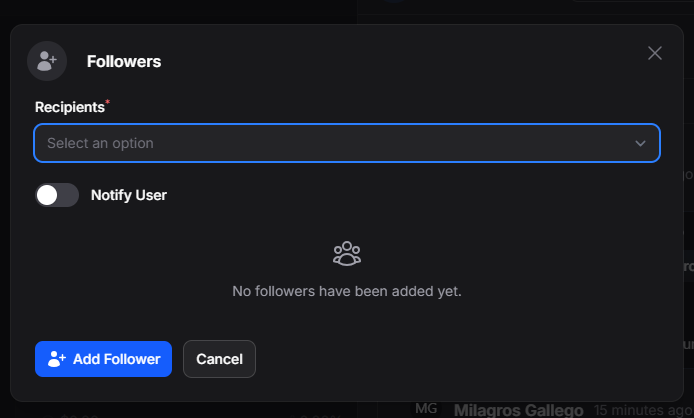
Figure 12. Managing followers
| Field | What it does |
|---|---|
| Recipients | Selects the users to add as followers. |
| Notify User | Specifies whether to notify the user when added. |
Select Add Follower to save your selection or Cancel to leave without making changes. Added followers receive notifications about new actions recorded in Chatter.
Filter and pin history items
Use Filters to find specific entries in the Chatter history.
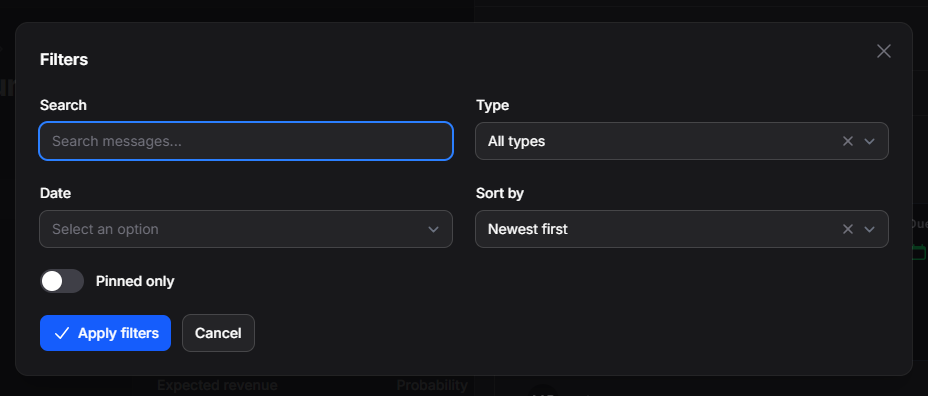
Figure 13. History filters
| Filter | What it does |
|---|---|
| Search | Finds specific items in the history. |
| Type | Filters by entry type. |
| Date | Filters by date. |
| Sort By | Orders the results using the available criteria. |
| Pinned Only | Shows only pinned items. |
Select Apply Filters to use the selected criteria, or Cancel to close the filters without applying them.
Use Pin to highlight an important message, note, or activity. It remains highlighted in the history until you unpin it.
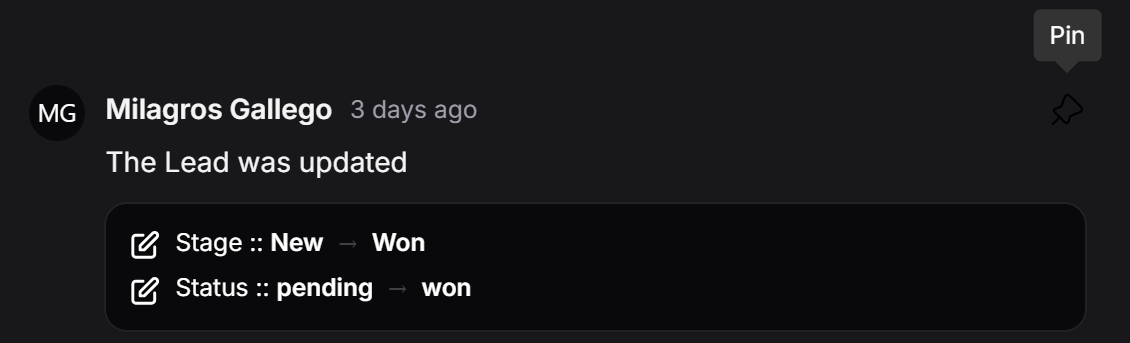
Figure 14. Pinning a history item