Customers
Customers are the commercial records used to manage opportunities, quotations, and related processes. A customer record brings together contact, address, tax, sales, and administrative information.
In this guide
- How customers are created
- View the Customers list
- Create a Customer
- Complete customer information
- View a Customer
- Manage contacts and addresses
- Edit or delete a Customer
How customers are created
Customers can be created in several parts of MIDLA:
| Starting point | How to create the customer |
|---|---|
| Won opportunity | Select Won and create a new customer during confirmation. |
| Quotation | Select New Quotation, then Create a New Customer. |
| Customers | Select New Customer to create one directly. |
After creation, the record is available in Customers for review and management.
View the Customers list
Go to CRM → Sales → Customers to see the registered customers.
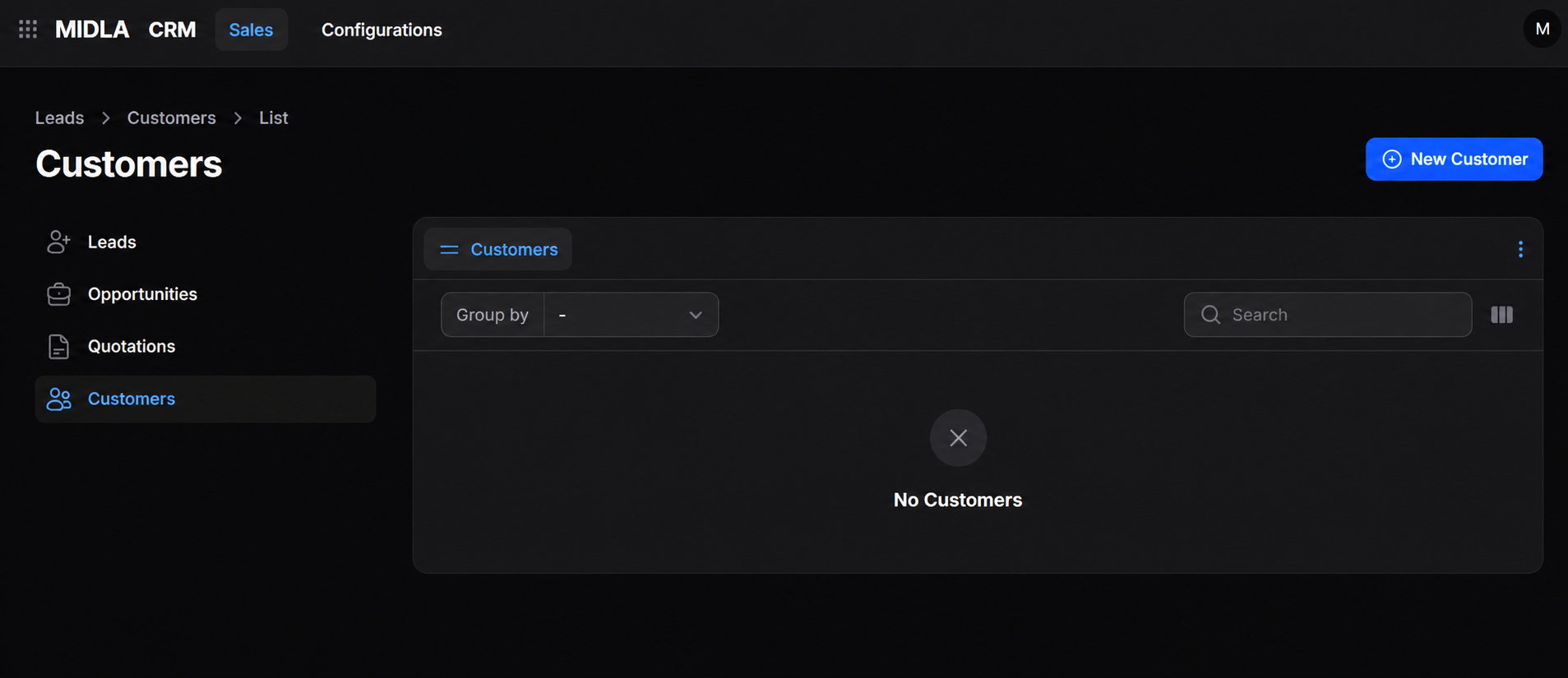
Figure 1. Customers list
Customers are displayed as cards with their main information, making it easier to identify and open a record.
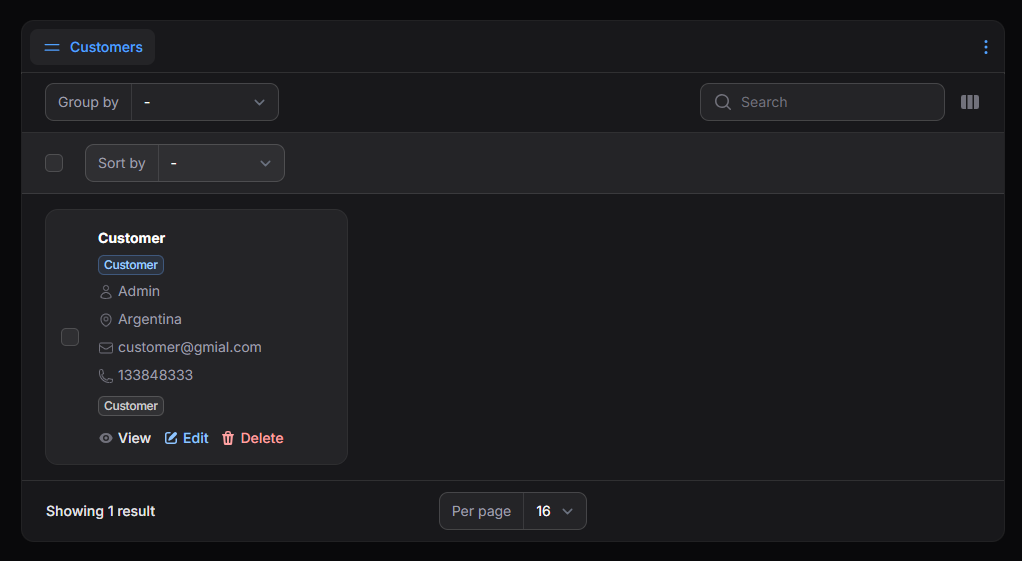
Figure 2. Customer list display
List tools
| Tool | What it does |
|---|---|
| Group By | Groups customers using the available criteria. |
| Sort By | Orders records using the available criteria. |
| Search | Finds a customer in the list. |
| Column Manager | Selects and rearranges the information visible in the list. |
Create a Customer
- Go to CRM → Sales → Customers.
- Select New Customer.
- Complete the applicable sections of the form.
- Select Create to save the record.
Complete customer information
General
The General section identifies the customer and provides options for classification.
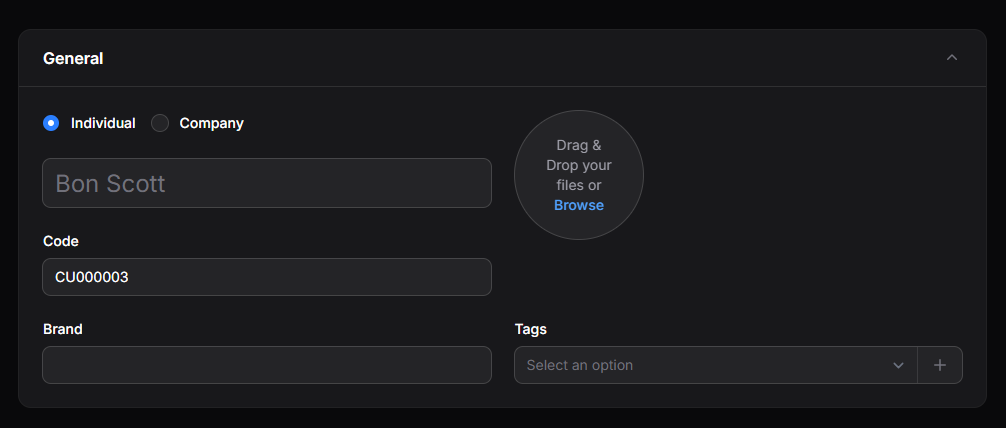
Figure 3. General customer information
| Field | What it defines |
|---|---|
| Individual / Company | Whether the customer is a person or a company. |
| Name | Customer name. |
| Code | Customer identification code. |
| Brand | Brand associated with the customer. |
| Tags | Labels used to classify and find the record. |
| Image | Image associated with the customer. |
Main Address
Use Main Address to enter the customer's primary location.
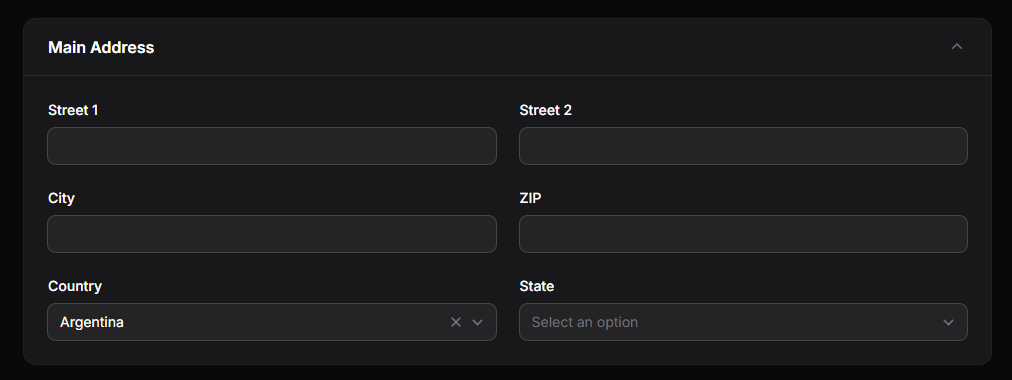
Figure 4. Main Address
| Field | What it defines |
|---|---|
| Street 1 | Main street address. |
| Street 2 | Additional address information. |
| City | City. |
| Postal Code | Postal code. |
| Country | Country. |
| Province / State | Province or state. |
Contact Information
Use Contact Information to record how to reach the customer.
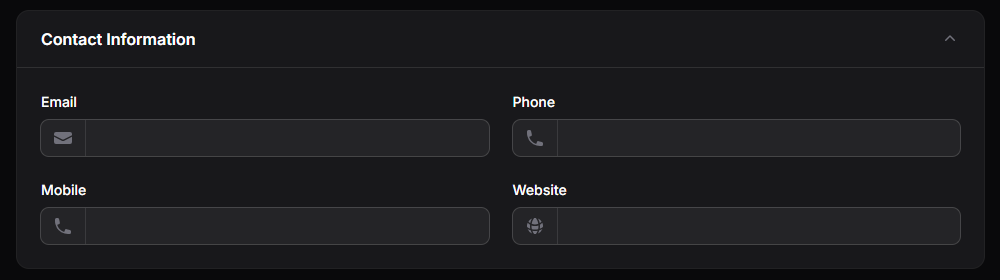
Figure 5. Contact Information
| Field | What it defines |
|---|---|
| Customer email address. | |
| Phone | Landline phone number. |
| Mobile Phone | Mobile phone number. |
| Website | Customer website. |
Tax Information
Use Tax Information to record the customer's tax and identification details.

Figure 6. Tax Information
| Field | What it defines |
|---|---|
| Tax Status | Customer tax status. |
| Document Type | Type of identification document. |
| Tax Number | Tax identification number. |
Sales
The Sales section contains the customer's sales-related settings.
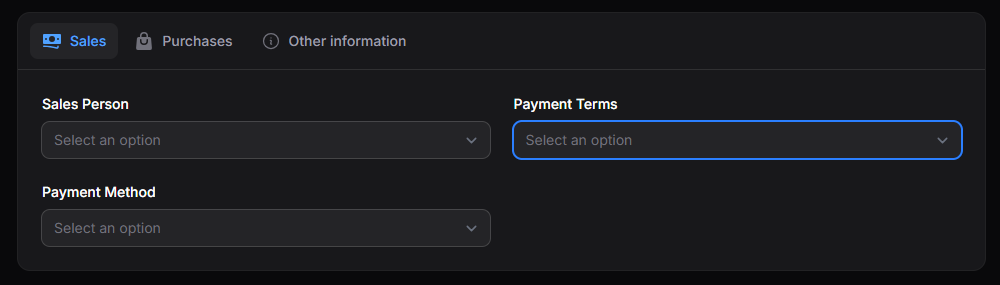
Figure 7. Sales settings
| Field | What it defines |
|---|---|
| Assigned Salesperson | User responsible for the customer. |
| Payment Terms | Payment terms associated with the customer for sales. |
| Payment Method | Payment method associated with the customer for sales. |
Purchases
The Purchases section contains the customer's purchase-related payment settings.

Figure 8. Purchases settings
| Field | What it defines |
|---|---|
| Payment Terms | Payment terms associated with the customer for purchases. |
| Payment Method | Payment method associated with the customer for purchases. |
The options for Payment Terms and Payment Method must first be configured in their corresponding modules.
Additional Information
Use Additional Information for complementary details about the customer.

Figure 9. Additional Information
| Field | What it defines |
|---|---|
| Industry | Customer's industry or business sector. |
| Company | Company associated with the customer. |
Save the Customer
| Action | Result |
|---|---|
| Create | Saves the customer and closes the form. |
| Create and Create Another | Saves the customer and opens a new form. |
| Cancel | Closes the form without saving. |
View a Customer
From the Customers list, open a customer's actions and select View. The record shows its general information, address, contact details, tax information, commercial settings, and other associated data.
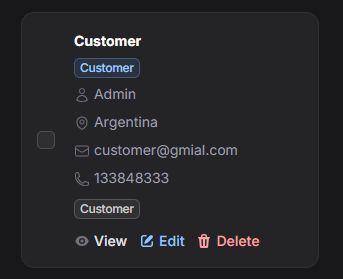
Figure 10. Customer actions
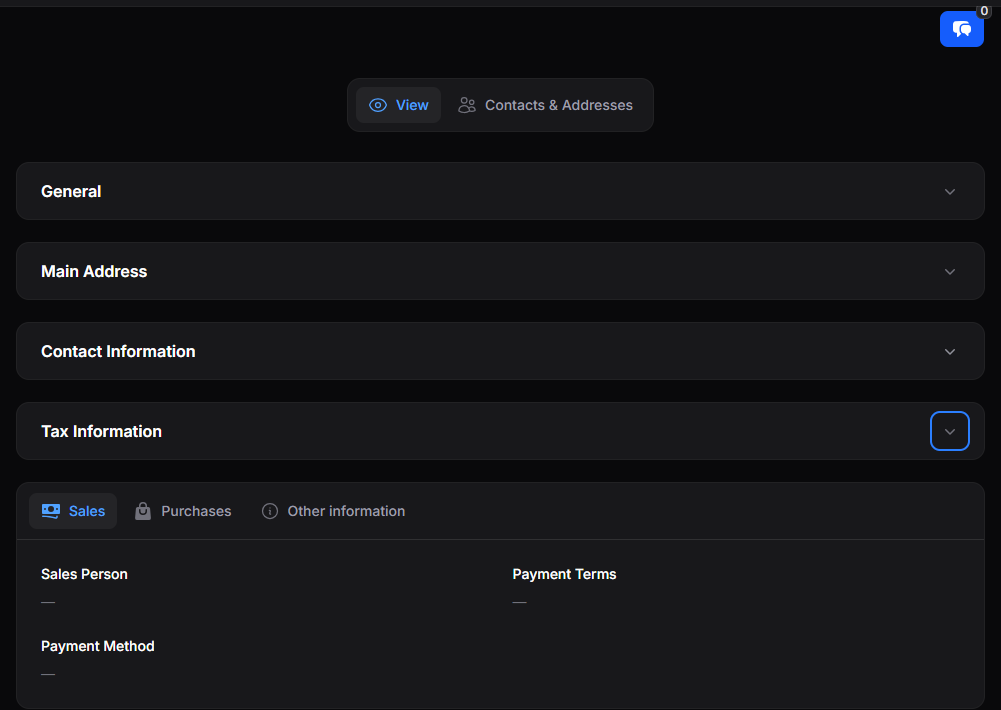
Figure 11. Customer details
Manage contacts and addresses
In the customer's Contacts and Addresses tab, you can review existing contacts and addresses or select Add Contact to create a new record.
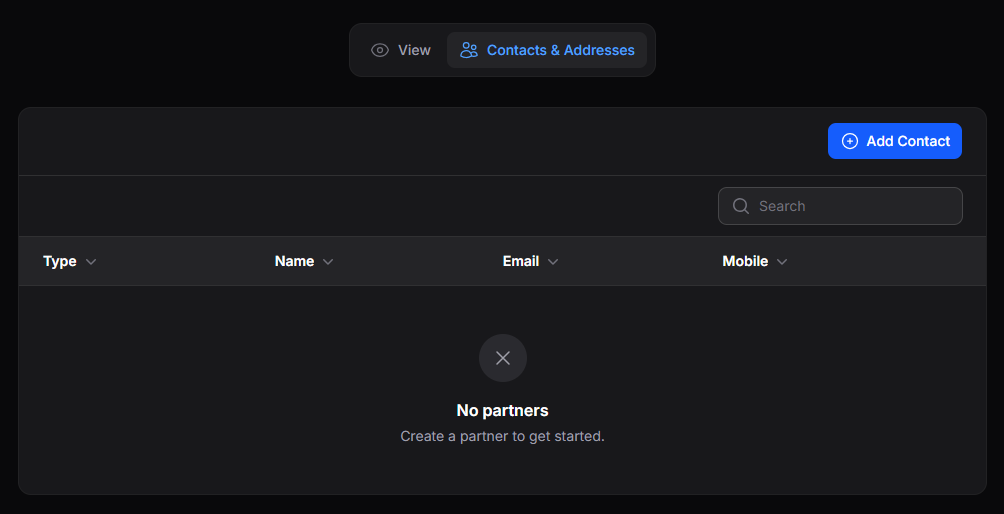
Figure 12. Contacts and Addresses tab
Add a contact or address
- Open the customer's Contacts and Addresses tab.
- Select Add Contact.
- Choose the type of record.
- Complete the applicable fields.
- Select Create to save it.
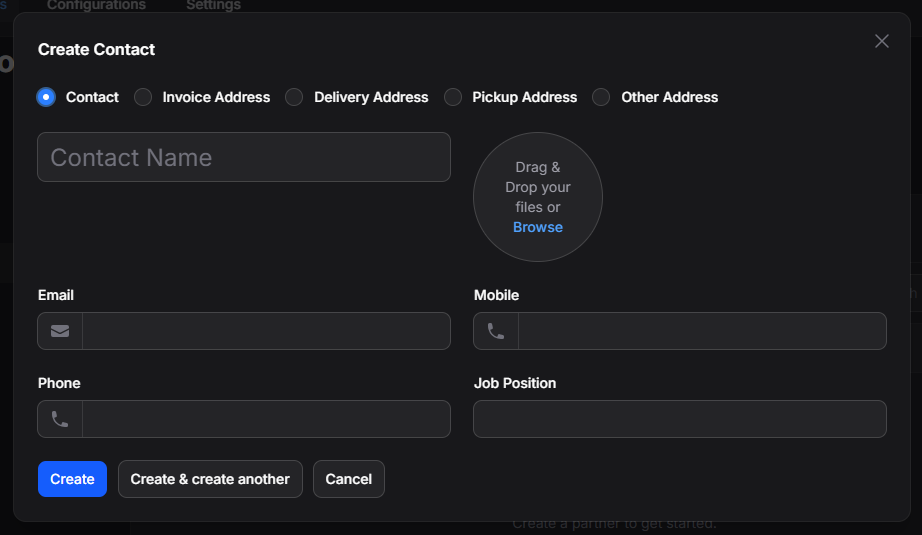
Figure 13. Contact and address form
| Record type | What it is used for |
|---|---|
| Contact | Person associated with the customer. |
| Billing Address | Billing location. |
| Delivery Address | Delivery location. |
| Pickup Address | Pickup location. |
| Other Address | Additional address. |
| Field | What it defines |
|---|---|
| Contact Name | Name of the contact or address record. |
| Email address. | |
| Mobile Phone | Mobile phone number. |
| Phone | Contact number. |
| Job Position | Role or function of the contact. |
| Image | Image associated with the record. |
Select Create to save and close the form, Create and Create Another to add another record, or Cancel to leave without saving.
The new contact or address appears in the tab's list.
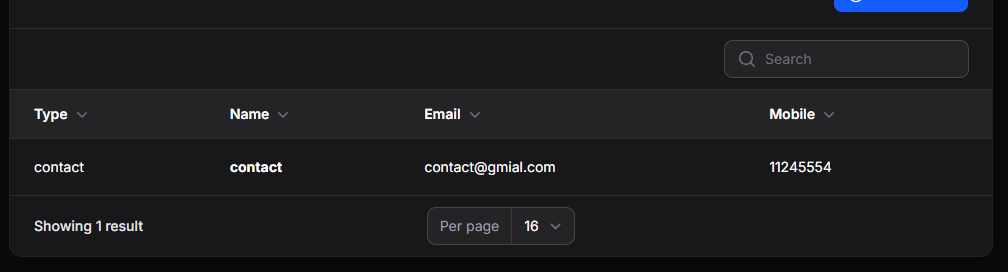
Figure 14. Saved contacts and addresses
The list shows each record's Type, Name, Email, and Mobile Phone. Select a record to review, edit, or update its details.
Edit or delete a Customer
- Edit: Open the customer form with the existing information and update its general, address, contact, tax, commercial, or additional details.
- Delete: Remove the customer so it no longer appears in the main list.
Depending on linked commercial records, customer information may also be available from related modules such as Sales or Invoices.