Opportunities
An Opportunity is a qualified business prospect with the potential to become a sale. It can be created from a viable Lead or entered directly, then followed through the stages of the sales pipeline.
In this guide
- View Opportunities and the pipeline
- Use Kanban, Table, and list views
- Create an Opportunity
- Complete the Opportunity form
- Manage an Opportunity
General workflow
- Open CRM → Sales → Opportunities or convert a qualified Lead.
- Create and assign the Opportunity, then record its commercial and contact details.
- Follow its progress through the pipeline and Chatter.
- Create a Quotation when you are ready to make a proposal.
- Mark the Opportunity as won or lost when its outcome is known.
View Opportunities and the pipeline
Go to CRM → Sales → Opportunities to see and manage the registered Opportunities.
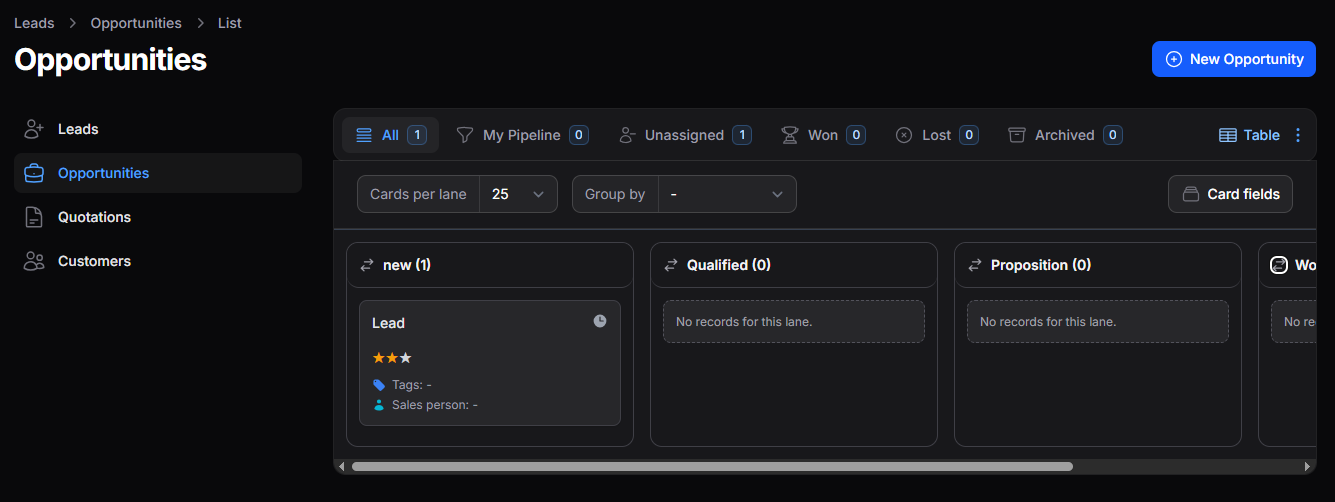
Figure 1. Opportunities list
The sales pipeline organizes Opportunities by stage so you can follow their progress. Pipeline stages are configured in CRM → Configurations → Stages.

Figure 2. Sales pipeline
Use Kanban, Table, and list views
Use the selector in the upper-right corner of the list to switch between Kanban and Table.
Kanban
Kanban displays Opportunities as cards in columns corresponding to pipeline stages.
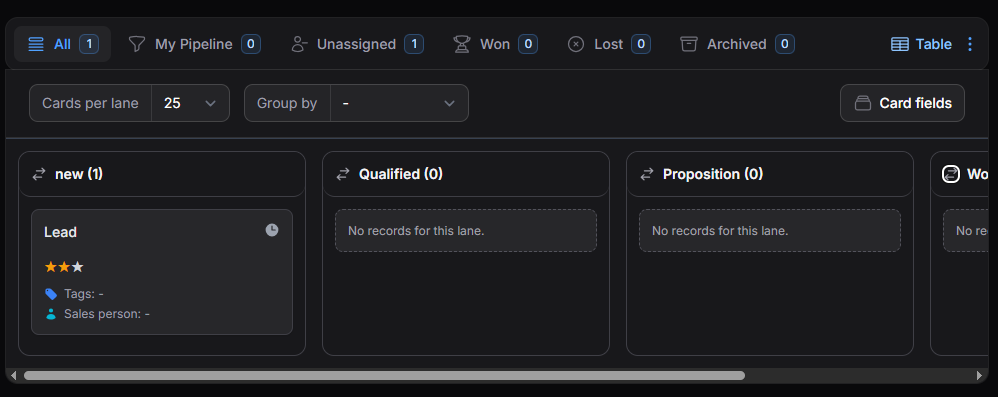
Figure 3. Kanban view
| Tool | What it does |
|---|---|
| Cards per Stage | Sets the number of visible cards in each stage. |
| Group By | Organizes Opportunities using the available criteria. |
| Card Fields | Selects the information shown on all Kanban cards. |
Table
Table displays Opportunities as rows with more detailed information.
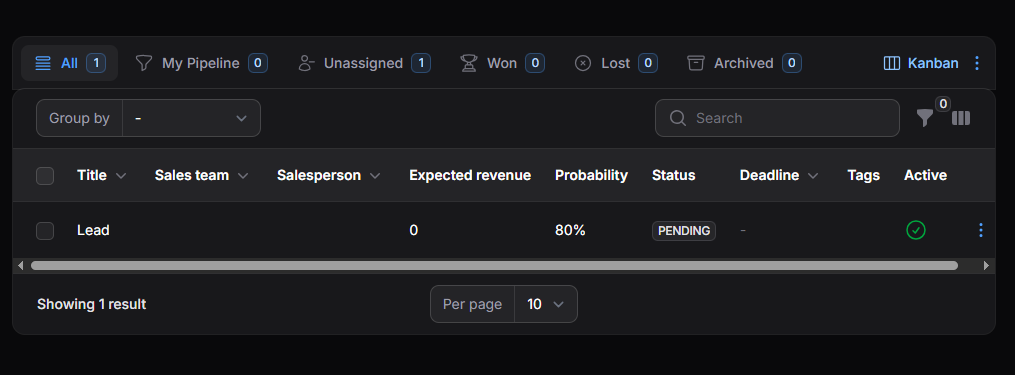
Figure 4. Table view
| Tool | What it does |
|---|---|
| Group By | Groups Opportunities using the available criteria. |
| Search | Finds an Opportunity by name. |
| Filters | Shows records matching selected conditions. |
| Column Manager | Selects and rearranges visible columns. |
List views
Views let you focus on Opportunities by assignment or status.

Figure 5. Opportunity views
| View | Opportunities shown |
|---|---|
| All | All available Opportunities. |
| My Activities | Opportunities with activities assigned to you. |
| My Pipeline | Opportunities assigned to you in your pipeline. |
| Followed | Opportunities you follow. |
| Unassigned | Opportunities without an assigned salesperson. |
| Pending | Active Opportunities in the sales process. |
| Won | Opportunities marked as won. |
| Lost | Opportunities marked as lost. |
| Archived | Archived Opportunities. |
Use the Action Group (⋮) menu in the upper-right corner to configure views. A view's actions include Apply View, Remove from Favorites, and Set as Default. Select Reset to restore the default view configuration.
Create an Opportunity
Convert a Lead
To convert a qualified Lead:
- Open the Lead's detail view.
- Select Convert to Opportunity.
- Confirm the conversion.
The record moves from Leads to Opportunities and receives the initial stage configured for the pipeline.
Create one manually
- Go to CRM → Sales → Opportunities.
- Select New Opportunity.
- Complete the applicable sections of the form.
- Select Create to save the record.
Complete the Opportunity form
General
Use General to enter the main commercial and contact details.
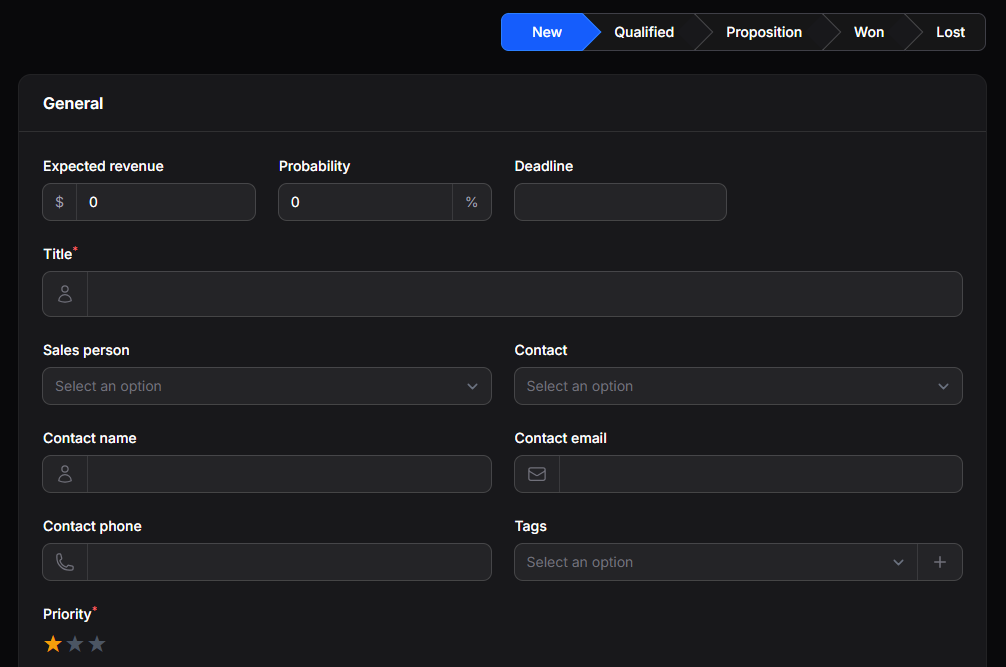
Figure 6. General Opportunity information
| Field | What it defines |
|---|---|
| Expected Revenue | Estimated revenue from the Opportunity. |
| Probability | Estimated chance of closing the sale. |
| Due Date | Target date for follow-up. |
| Title | Name identifying the Opportunity. |
| Assigned Salesperson | User responsible for the commercial process. |
| Contact | Existing contact associated with the Opportunity. |
| Contact Name | Name of the contact. |
| Contact Email | Contact email address. |
| Contact Phone | Contact phone number. |
| Tags | Labels used to classify and find the record. |
| Priority | Priority level for follow-up. |
When you select an existing contact, some fields are filled with its previously registered information.
Additional Information: Company Information
Enter the company and location associated with the Opportunity.
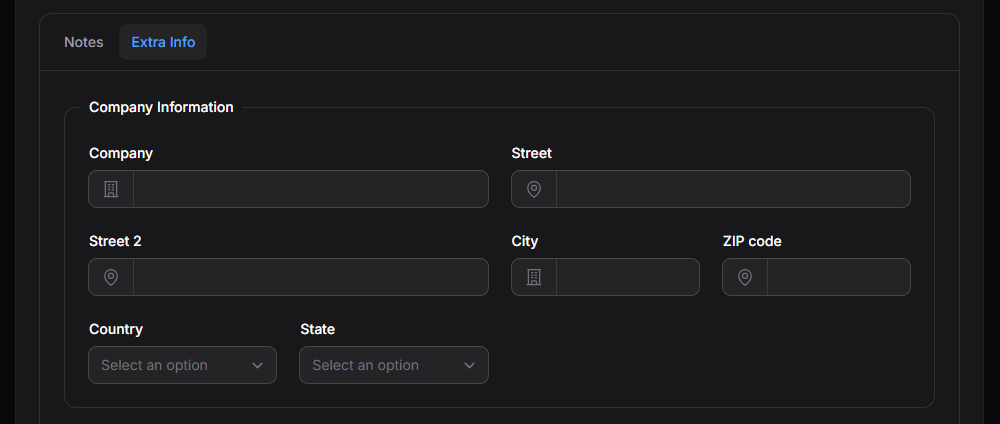
Figure 7. Company Information
| Field | What it defines |
|---|---|
| Company | Company associated with the Opportunity. |
| Street | Main street address. |
| Street 2 | Additional address information. |
| City | City. |
| Postal Code | Postal code. |
| Country | Country. |
| Province / State | Province or state. |
Additional Information: Contact Information
Add the contact's role and website.
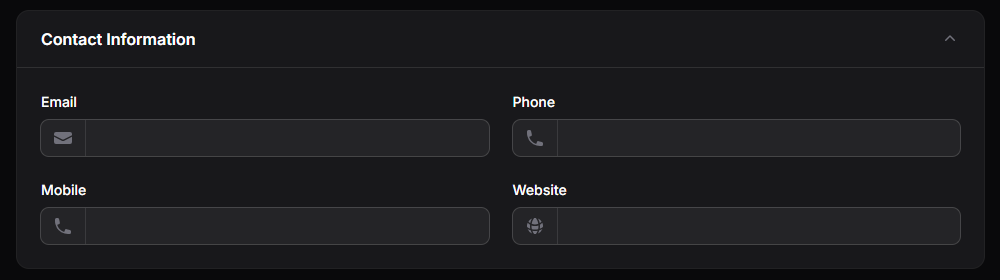
Figure 8. Contact Information
| Field | What it defines |
|---|---|
| Job Position | Contact's role or position. |
| Contact Website | Website associated with the contact or company. |
Additional Information: Ownership
Use Ownership to identify the internal company and team responsible for the Opportunity.
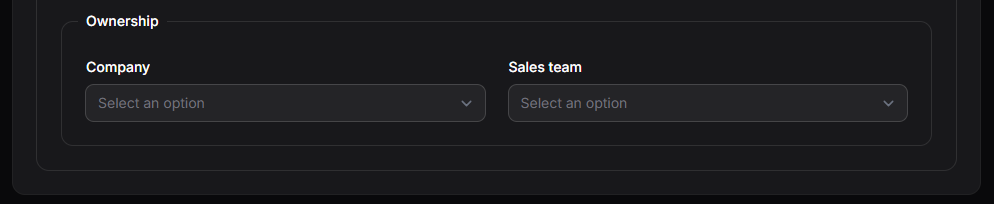
Figure 9. Ownership
| Field | What it defines |
|---|---|
| Company | Internal company associated with the record. |
| Sales Team | Team responsible for the Opportunity. |
Complete these additional fields according to your tracking needs.
Notes
Use Notes to record observations or other details relevant to the Opportunity.
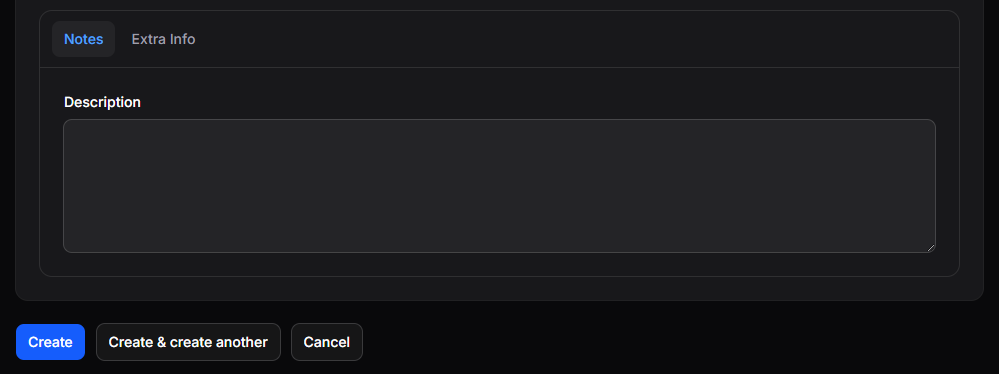
Figure 10. Opportunity notes
Save the Opportunity
| Action | Result |
|---|---|
| Create | Saves the Opportunity and closes the form. |
| Create and Create Another | Saves the Opportunity and opens a new form. |
| Cancel | Closes the form without saving. |
The saved Opportunity can be viewed in Kanban or Table format.
Manage an Opportunity
Open an Opportunity directly or use its Action Group (⋮) menu at the end of a row in Table view.
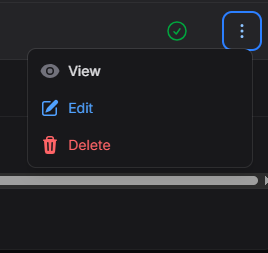
Figure 11. Opportunity actions menu
View an Opportunity
Select View to review its general details, additional information, and notes. The detail view provides actions for the next steps in the commercial process.
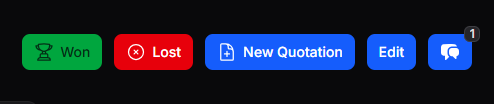
Figure 12. Opportunity detail actions
Mark an Opportunity as won
Select Mark as Won when the sale has been successfully closed. You can confirm without creating a customer, or enable Create a New Customer during confirmation.
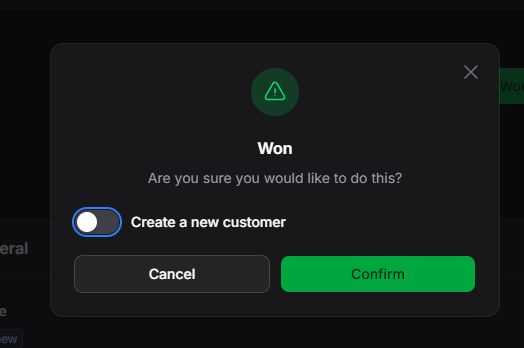
Figure 13. Won Opportunity confirmation
Select Confirm to mark the Opportunity as won without creating a customer, or Cancel to leave it unchanged.
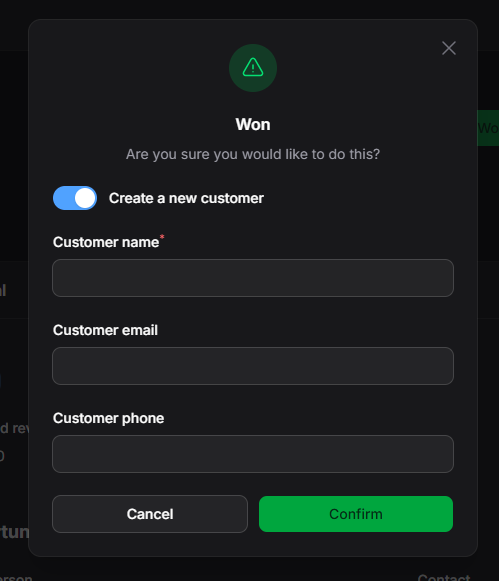
Figure 14. Create a customer during confirmation
If you enable Create a New Customer, available contact details from the Opportunity fill the customer fields automatically. Select Confirm to create the customer and mark the Opportunity as won. Won Opportunities appear in the Won view.
Mark an Opportunity as lost
Select Mark as Lost when the commercial process will not continue. Choose a Lost Reason and enter a Loss Description if you have additional context.
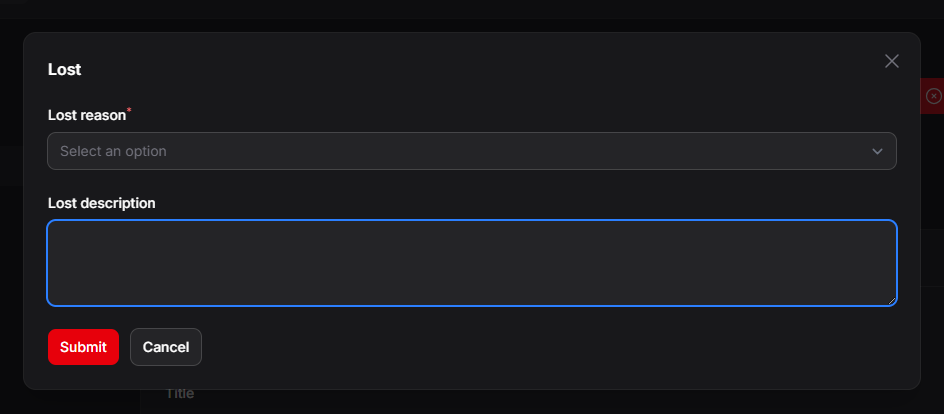
Figure 15. Lost Opportunity form
Lost Reasons are configured in CRM → Configurations → Lost Reasons. Select Submit to save the outcome or Cancel to leave the Opportunity unchanged. Lost Opportunities appear in the Lost view.
Create a Quotation
Select New Quotation to create a proposal linked to the Opportunity. You can create a new customer, select an existing one, or proceed without associating a customer.
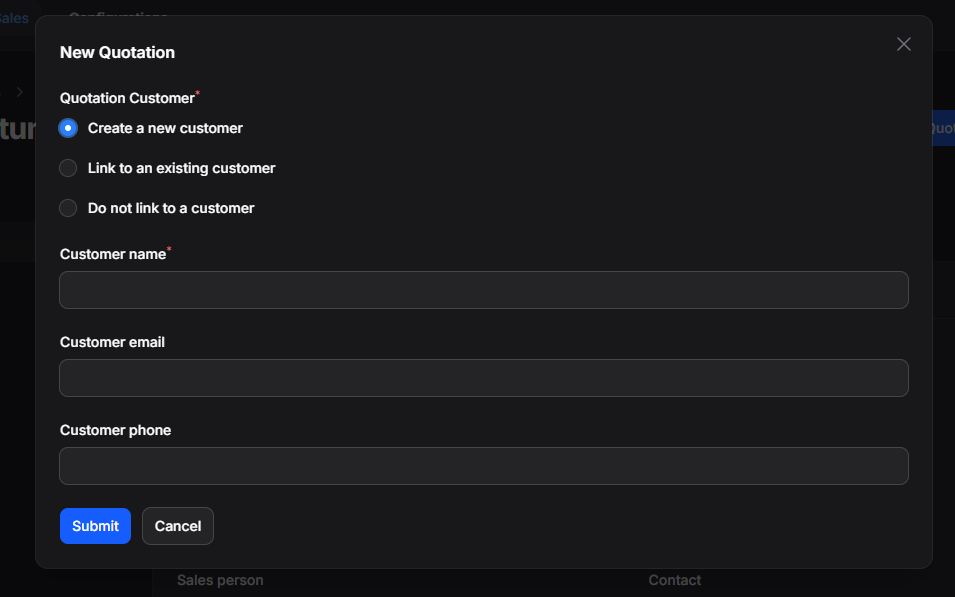
Figure 16. New Quotation options
Available contact information from the Opportunity fills customer fields when applicable. Select Submit to open the Quotation form. See the Quotations guide for the full creation and management process.
Follow up in Chatter
Use the Opportunity's Chatter to keep messages, notes, and activities connected to its record.
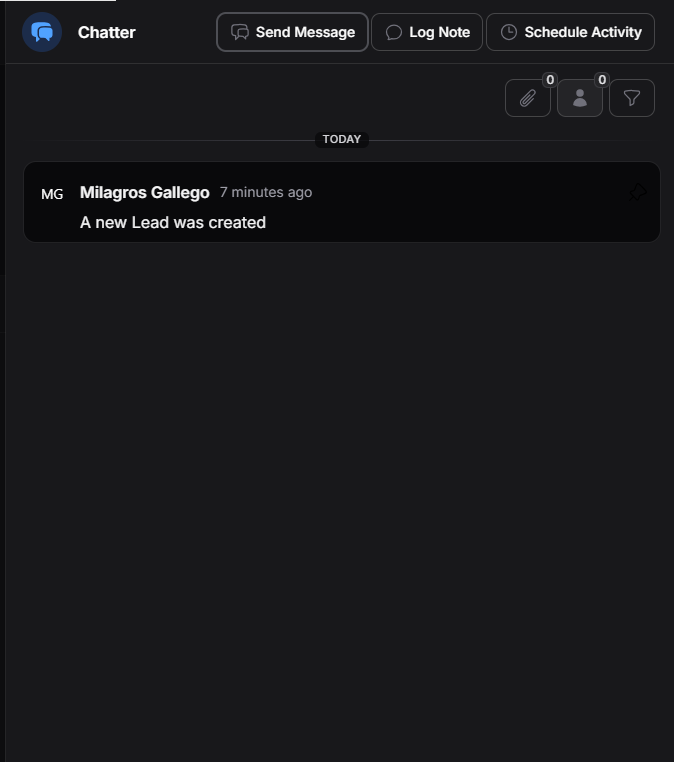
Figure 17. Opportunity Chatter
Its actions include Send Message, Log Note, and Schedule Activity. See the Chatter and My Schedule guides for those workflows.
Edit an Opportunity
Select Edit to update its information. Select Save Changes to keep the updates or Cancel to discard them.
Delete or restore an Opportunity
Select Delete to remove the Opportunity from the main list. It remains available in Archived, where you can:
- Restore: Return it to the main list.
- Delete Permanently: Remove it from the system permanently.
An Opportunity deleted with Delete Permanently cannot be recovered.