Categories
From Categories, you can create categories and organize them using a parent category.
Navigation path:
Invoicing → Settings → Categories
How to create a category
1. Open Categories
From the Invoicing module, go to Settings → Categories.
The list of registered categories appears.
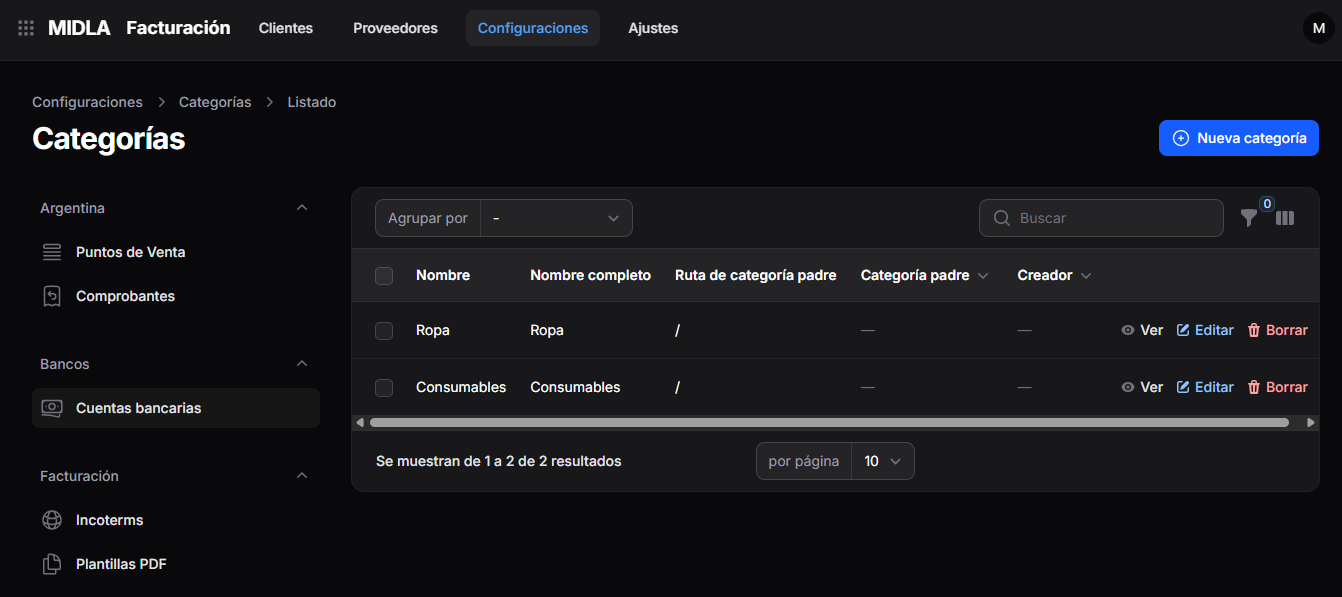
The list displays:
- Name
- Full Name
- Parent Category Path
- Parent Category
- Created By
Use the Search field to find a record or the Group by option to organize the list.
2. Select New Category
In the upper-right corner, click New Category.
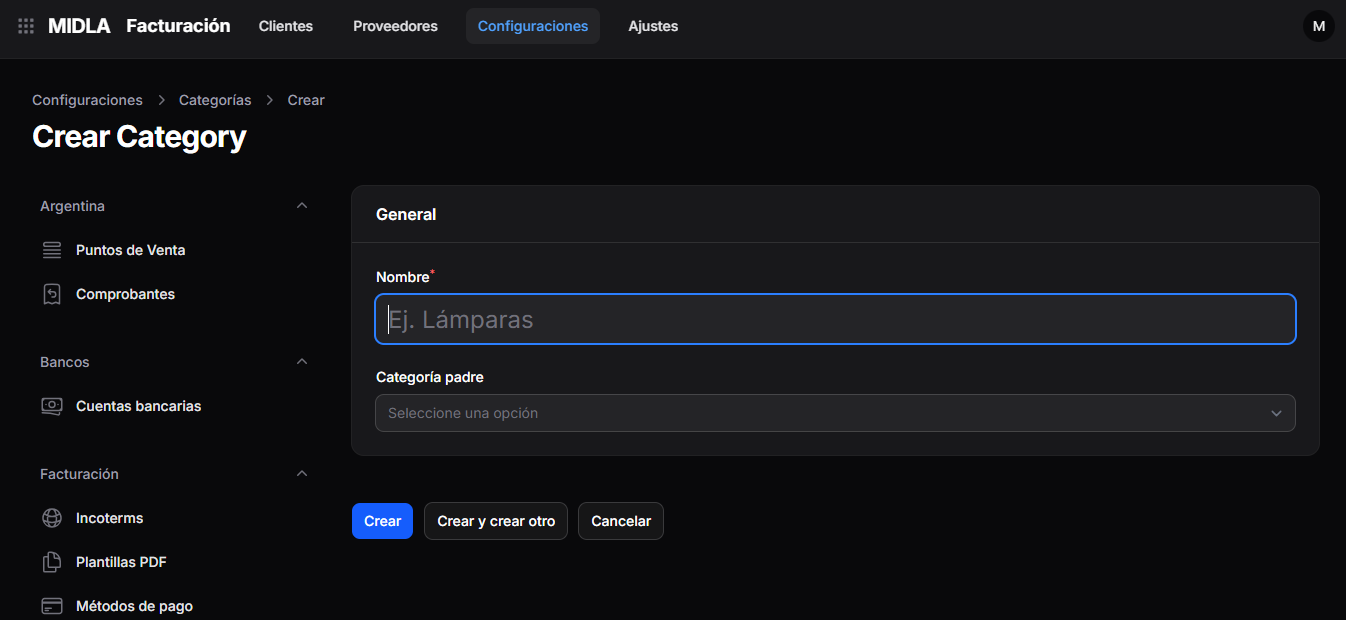
The creation form opens.
3. Complete the details
In the General section, complete:
- Name: enter the category name. This field is required.
- Parent Category: select an existing category if you want the new category to belong to it.
If the category does not belong to another category, leave Parent Category unselected.
The Parent Category allows you to organize categories into a hierarchy.
For example, you can create Lamps under a parent category called Lighting.
4. Save the category
Once you have completed the details, select one of the following options:
- Create: saves the category.
- Create and create another: saves the record and allows you to create a new one.
- Cancel: cancels the creation.
Manage categories
Each record in the list includes the following actions:
- View: allows you to view the category details.
- Edit: allows you to modify its details.
- Delete: allows you to delete the record.
Result
The category is registered in MIDLA with its name and, if applicable, its parent category.
You can view it under Invoicing → Settings → Categories.