Taxes
From Taxes, you can view and register taxes, define their type and calculation method, and associate them with a tax group.
Navigation path:
Invoicing → Settings → Taxes
How to create a tax
1. Open Taxes
From the Invoicing module, go to Settings → Taxes.
The list of registered taxes appears.
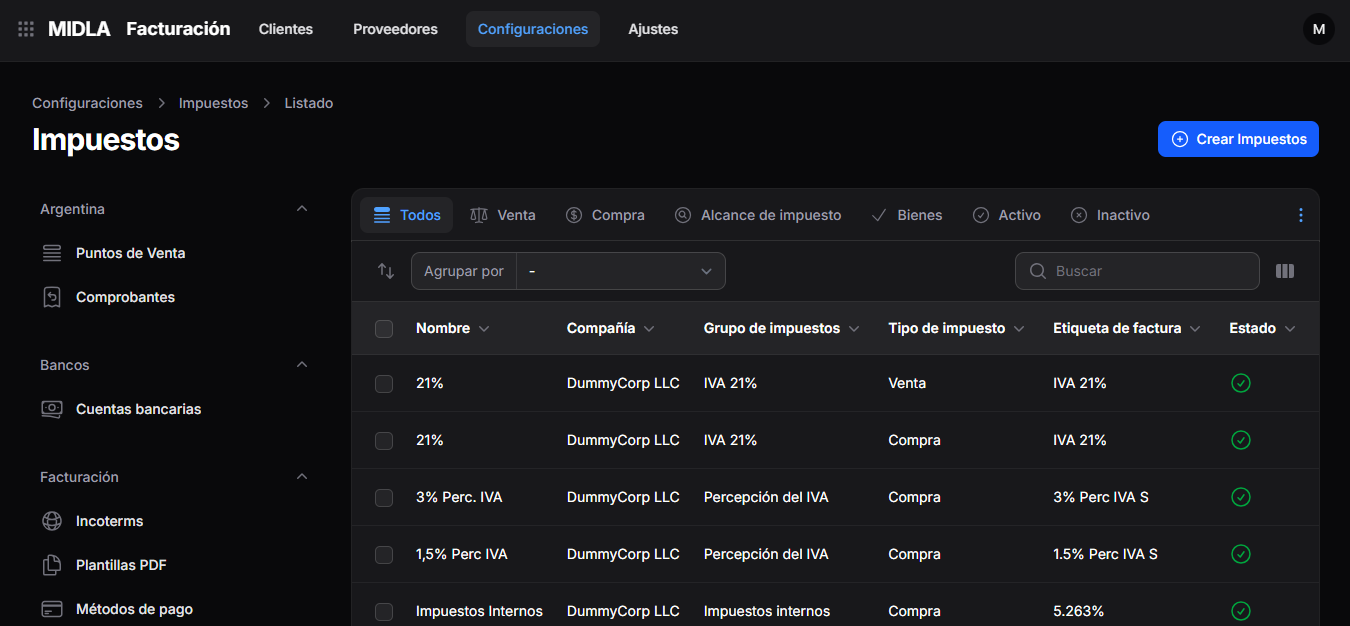
The list displays:
- Name
- Company
- Tax Group
- Tax Type
- Invoice Label
- Status
Use the Search field to find a record or the Group by option to organize the list.
The All, Sales, Purchases, Tax Scope, Goods, Active, and Inactive options are also available at the top.
2. Select Create Taxes
In the upper-right corner, click Create Taxes.
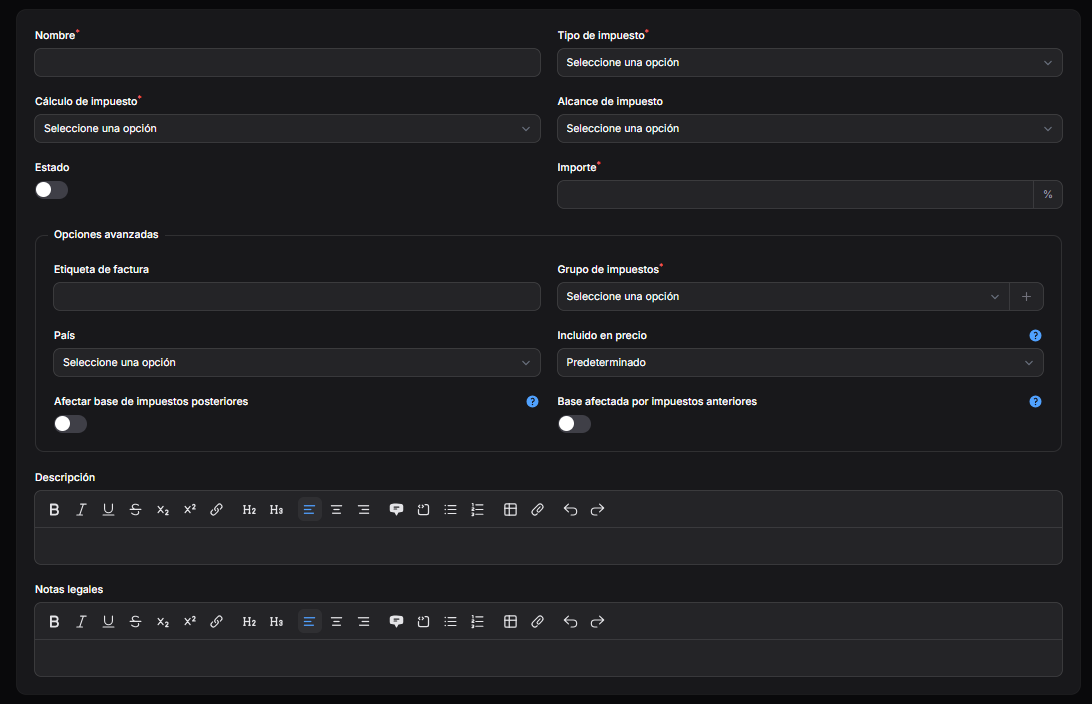
The creation form opens.
3. Complete the general details
Complete the following fields:
- Name: enter a name that identifies the tax.
- Tax Type: select the appropriate type, such as Sales or Purchases.
- Tax Computation: select the calculation method.
- Tax Scope: select the appropriate scope, if applicable.
- Amount: enter the value according to the selected calculation method.
- Status: use the toggle to set the tax as active or inactive.
Fields marked with an asterisk (*) are required.
4. Complete the advanced options
In the Advanced Options section, configure:
- Invoice Label: enter the label that will identify the tax on the invoice.
- Tax Group: select the group it belongs to. This field is required.
- Country: select the appropriate country.
- Included in Price: select the appropriate option for the tax configuration.
Groups are configured under Invoicing → Settings → Tax Groups.
You can find the procedure in the Tax Groups guide.
5. Configure the relationship with other taxes
The following toggles are available under Advanced Options:
- Affect Base of Subsequent Taxes: specifies whether this tax modifies the calculation base of subsequent taxes.
- Base Affected by Previous Taxes: specifies whether this tax's base is affected by previous taxes.
Configure these options according to the calculation you need to apply.
6. Add additional information
If applicable, complete:
- Description: add information about the tax.
- Legal Notes: enter the corresponding legal notes.
Both fields include text formatting tools.
7. Review the configuration
Before completing the creation process, check:
- The tax name and type.
- The calculation method and amount.
- The selected tax group.
- The tax status.
- The price inclusion settings and relationship with other taxes.
The screenshot shows a % symbol next to the Amount field. Review the method selected under Tax Computation to enter the appropriate value.