Products
From this section, you can view and create goods or services, configure their prices, costs, and taxes, and add additional information.
Navigation path: Invoicing → Vendors → Products.
1. Open the product list
Go to the Invoicing module, select Vendors in the top menu, and then Products in the sidebar.
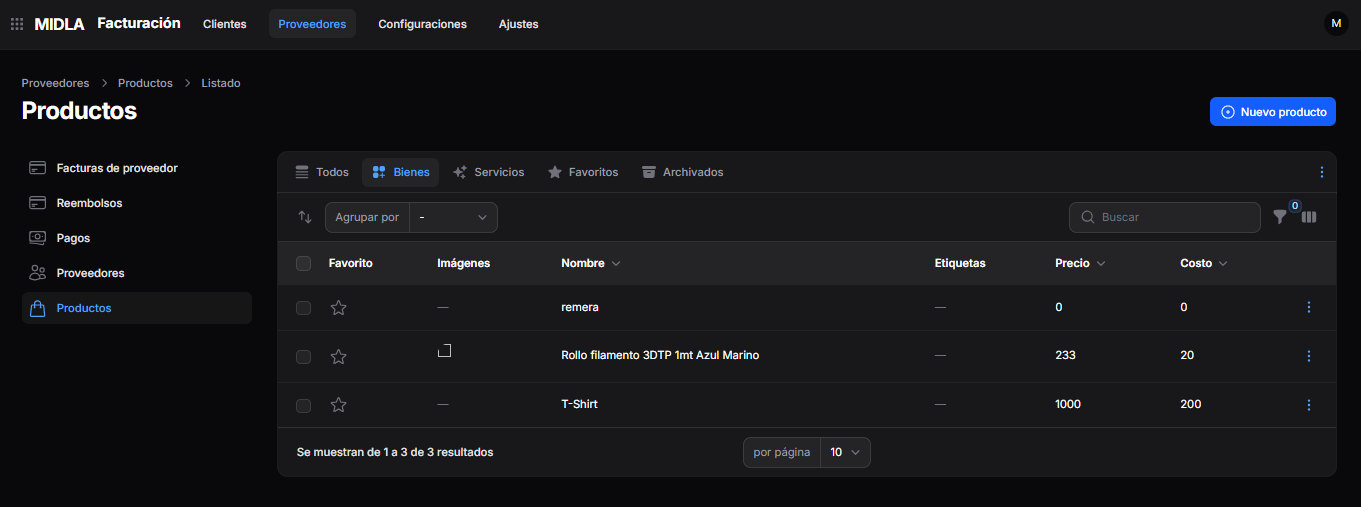
The list displays the Favorite, Images, Name, Tags, Price, and Cost columns.
2. Search and organize products
At the top of the list, you can:
- Select the All, Goods, Services, Favorites, or Archived views.
- Use Search to find a product.
- Select Group by to organize the results.
- Use the filter and column icons to adjust the view.
At the bottom, you can choose how many records to display per page.
3. Create a product
Click New Product in the upper-right corner of the list.
4. Complete the general information
In the General Information section, complete:
- Name: enter the name of the product or service.
- Description: add the details you want to record.
- Type: select Goods or Service.
- Can Be Sold: enable this option if applicable.
- Can Be Purchased: enable this option if applicable.
- Invoicing Policy: select the appropriate option.
- Category: select the product category.
- Company: review or select the appropriate company.
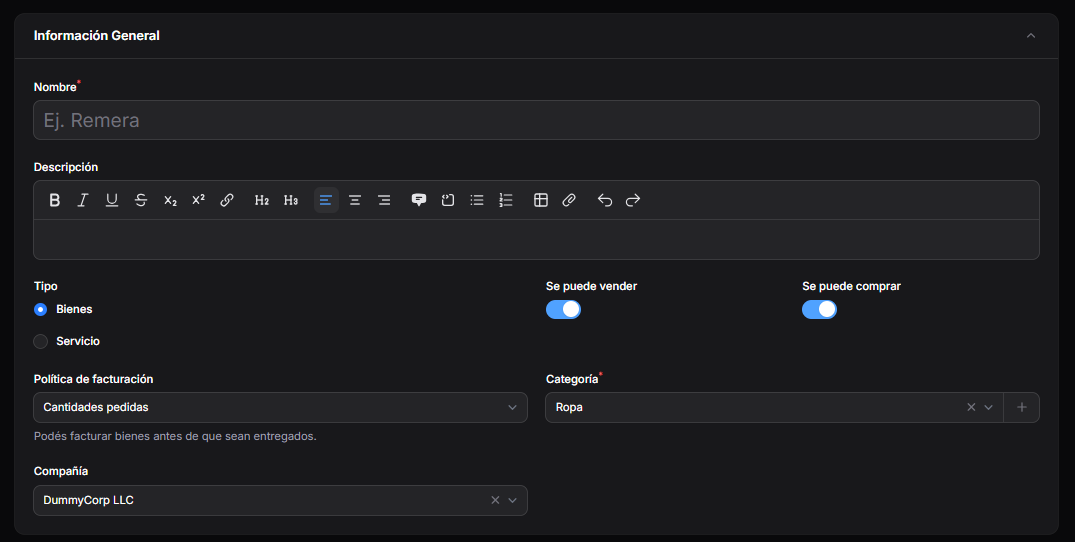
With the Ordered Quantities policy, the form indicates that you can invoice goods before they are delivered.
5. Configure prices and taxes
The Pricing section is divided into Sales and Purchases.
Sales
- Price: enter the sales price.
- Unit of Measure: select the unit used for sales.
- Sales Taxes: select the applicable taxes.
Purchases
- Cost: enter the purchase cost.
- Purchase Unit of Measure: select the unit used for purchases.
- Purchase Taxes: select the applicable taxes.
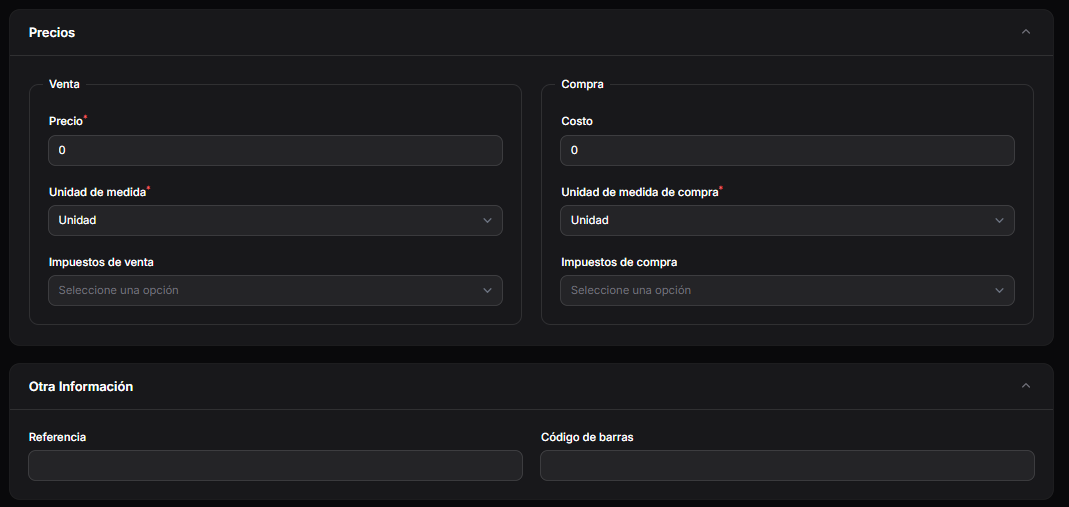
6. Complete other information
In the Other Information section, complete the following details, if applicable:
- Reference.
- Barcode.
7. Add images and tags
In the Images section, drag files into the indicated area or click Browse to select them.
In the Additional section, select the Tags you want to associate with the product.
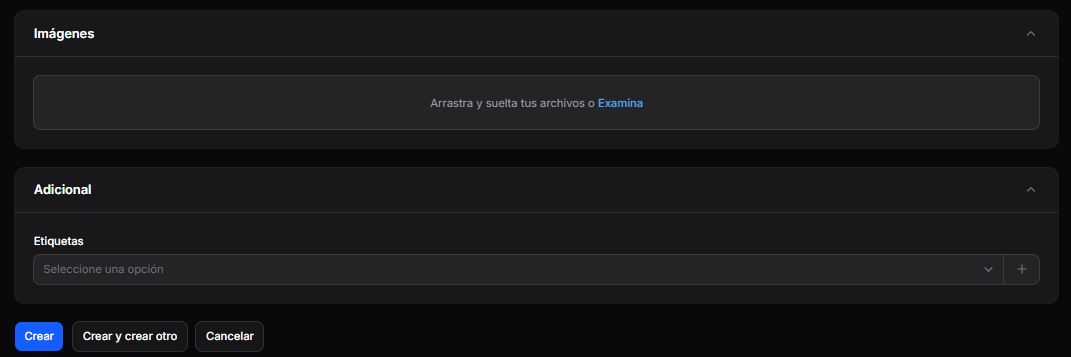
8. Create the product
Review the details and complete the fields marked with an asterisk.
Then select one of the available options:
- Create: to save the product.
- Create and create another: to save the product and continue adding another.
- Cancel: to exit without creating the record.