Refunds
From this section, you can view vendor refunds and start entering a new document.
Navigation path: Invoicing → Vendors → Refunds.
1. Open the refund list
Go to the Invoicing module, select Vendors in the top menu, and then Refunds in the sidebar.
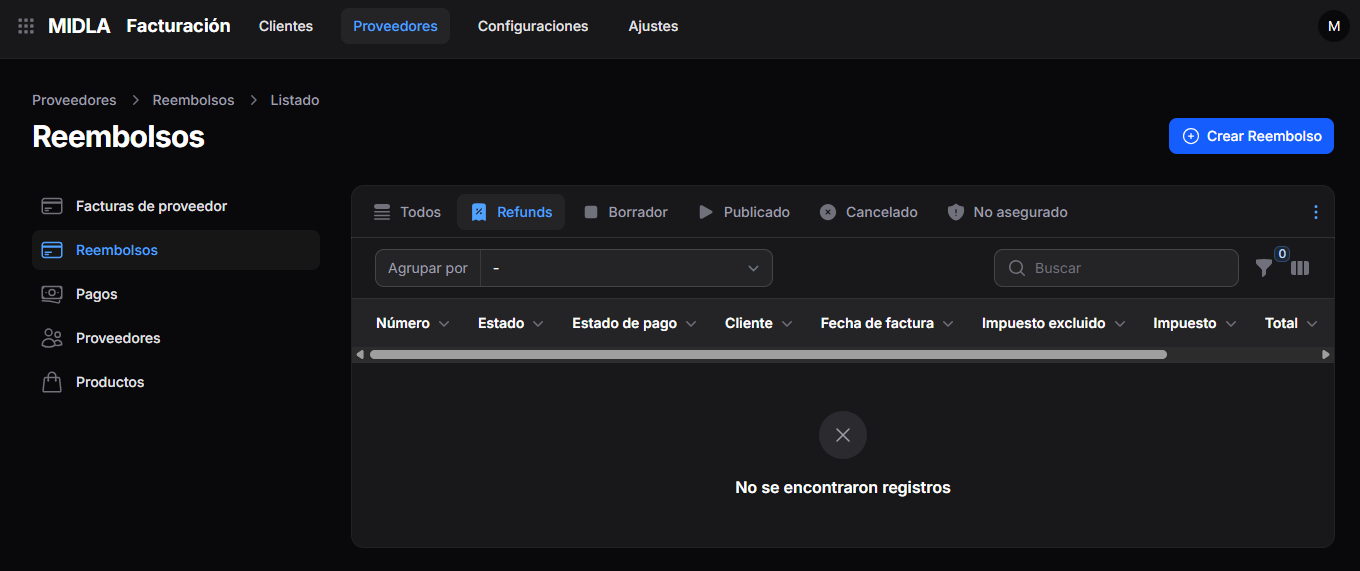
The list displays the document number, status, payment status, date, and amounts.
If there are no records for the selected view, the message No records found appears.
2. Search and organize refunds
At the top of the list, you can:
- Use Search to find a record.
- Select Group by to organize the results.
- Use the filter icon to refine the search.
- Use the column icon to configure the view.
You can also select the All, Refunds, Draft, Posted, Canceled, and Unsecured views.
3. Create a refund
Click Create Refund in the upper-right corner.
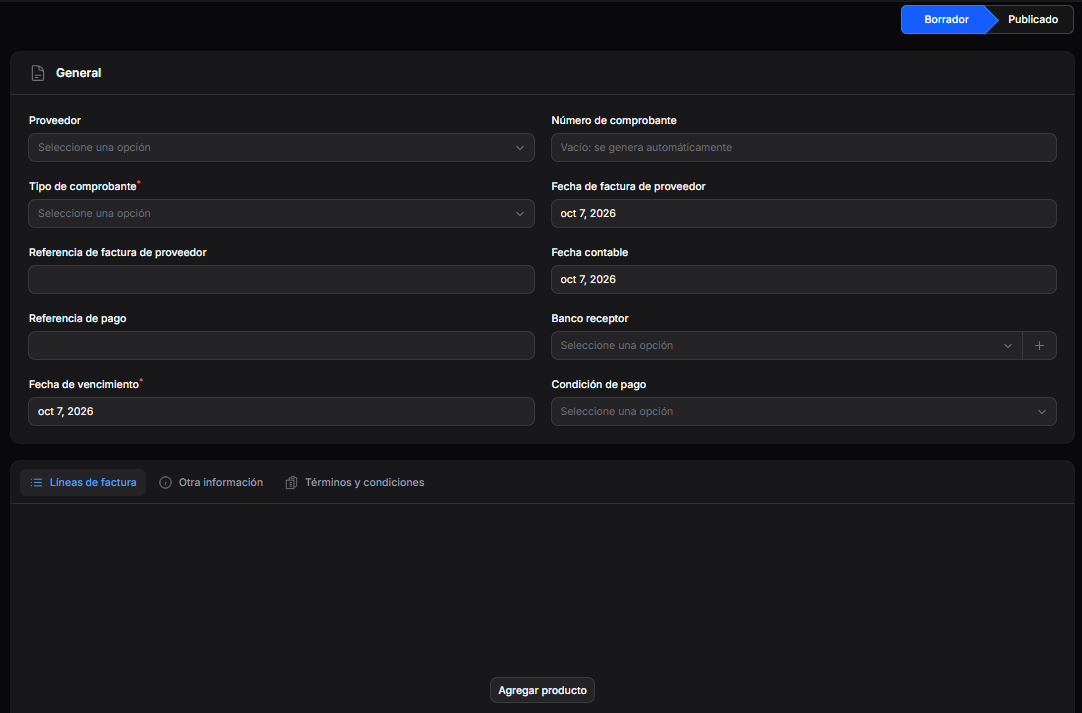
The entry form opens, initially showing Draft status.
4. Complete the general information
Vendor and document
- Vendor: select the vendor the refund is from.
- Document Type: select the type of document you want to record.
- Document Number: enter the corresponding number. The field indicates that a number is generated automatically if left blank.
- Vendor Bill Reference: enter the document reference, if applicable.
Dates
- Bill Date: enter the document date.
- Accounting Date: enter the corresponding accounting date.
- Due Date: enter the due date.
Payment details
- Payment Reference: enter a payment-related reference, if applicable.
- Recipient Bank: select the appropriate bank.
- Payment Terms: select the appropriate payment terms.
Fields marked with an asterisk are required. Review the prefilled dates and adjust them according to the document you are recording.
5. Add products
Select the Invoice Lines tab and click Add Product to start adding the products corresponding to the refund.
6. Review the additional information
The form also includes the Other Information and Terms and Conditions tabs.
Open each tab to review and complete the applicable information.