Tasks
What is a task?
A task is a specific activity within a project. It helps organize, assign, and track the work needed to complete an objective.Tasks can include assignees, priorities, deadlines, recorded time, subtasks, and workflow statuses. Each task belongs to a Project.
In this guide
- Access the task list
- Use Table and Kanban views
- Choose a list view
- View or edit a task
- Archive, restore, or permanently delete a task
Access the task list
Go to Projects → Tasks.
This section brings together tasks from different projects so you can review and manage them in one place.
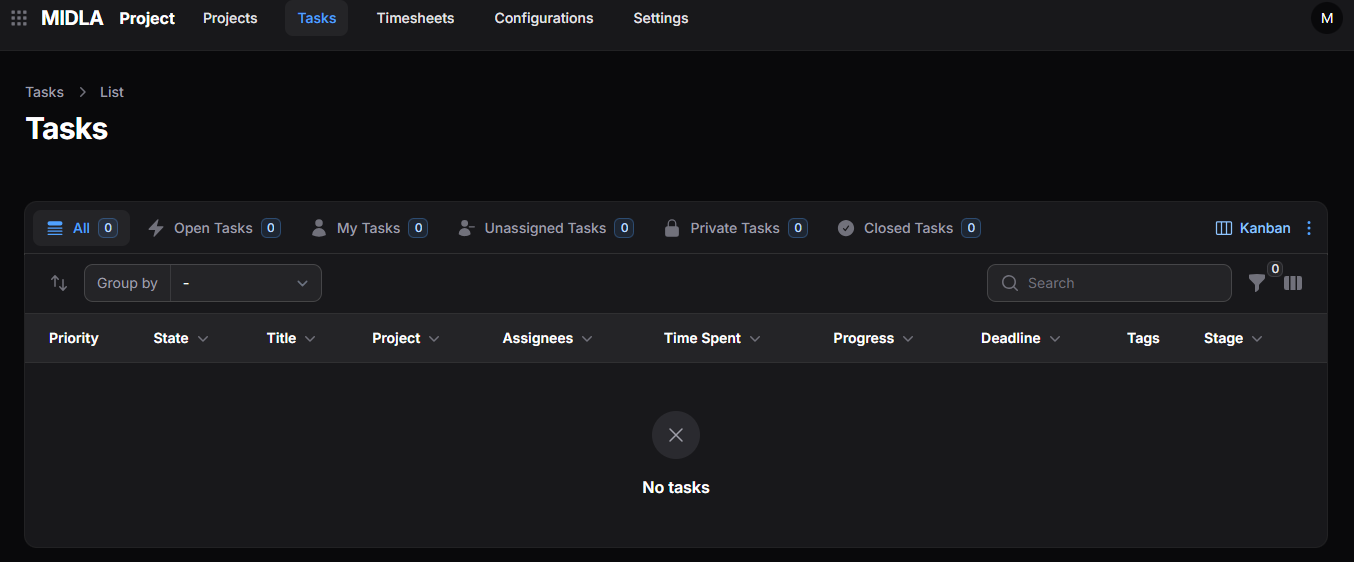
Figure 1. Tasks list
To create a task, open the Tasks section within its project. The Projects → Tasks list is used to review and manage existing tasks across projects.
Display formats
Tasks can be displayed in Table or Kanban format.
Table view
The Table view displays tasks as rows with detailed information for each record.
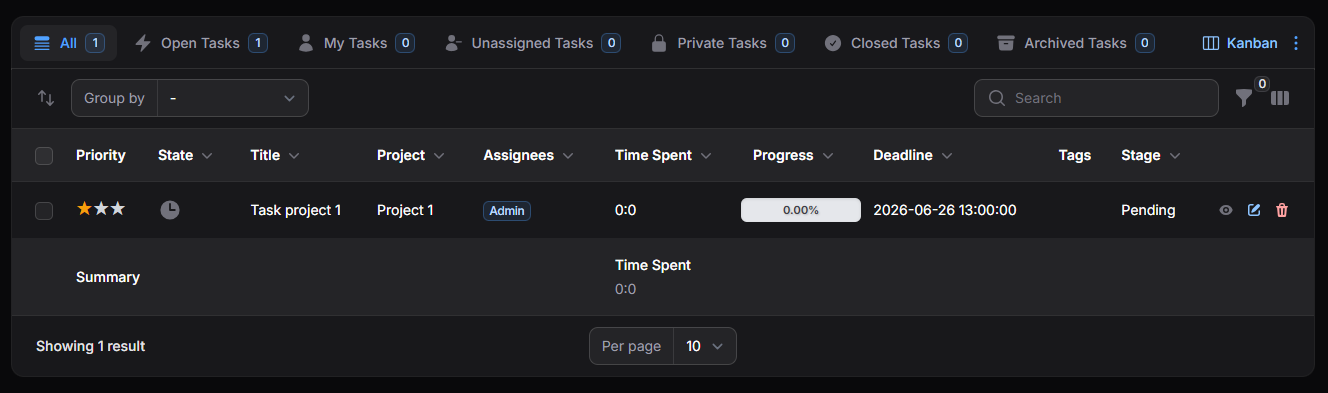
Figure 2. Tasks in Table view
Available tools include:
Groups tasks according to the available criteria.
Locates registered tasks.
Displays tasks that meet the selected conditions.
Configures the visible columns.
Changes the order of records manually.
Kanban view
The Kanban view displays tasks as cards in columns based on their status or workflow stage. It provides a visual way to follow progress and update statuses.
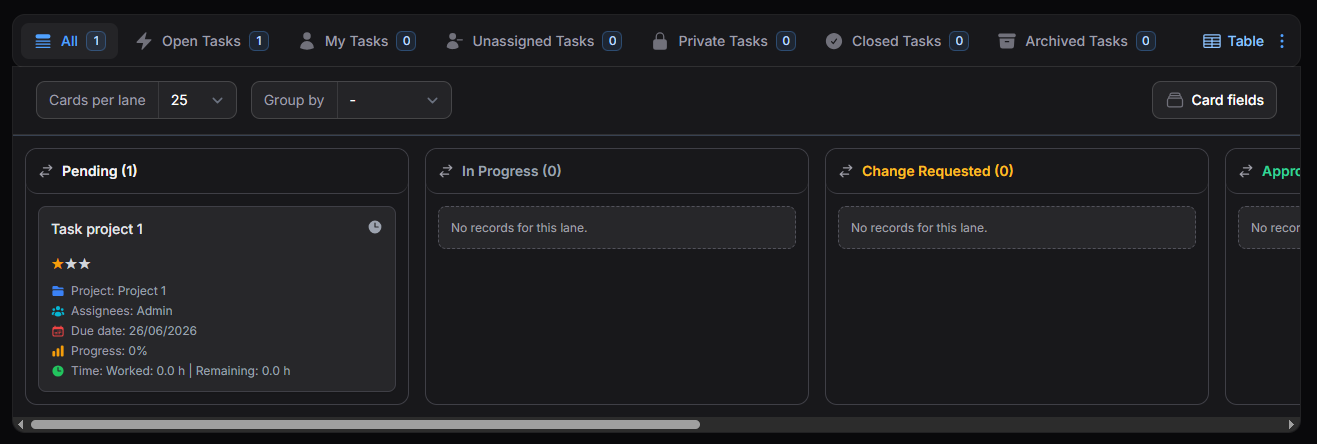
Figure 3. Tasks in Kanban view
Available tools include:
Sets the number of visible cards in each column.
Groups tasks according to the available criteria.
Configures the information shown on each card.
List views
Use the available views to find tasks that match a particular status or relationship to your account.

Figure 4. Task list views
- All: displays all tasks registered in the system.
- Open Tasks: displays tasks that are currently open.
- My Tasks: displays tasks assigned to the current user.
- Unassigned Tasks: displays tasks without assignees.
- Private Tasks: displays tasks configured with private visibility.
- Followed Tasks: displays tasks followed by the current user.
- Closed Tasks: displays completed or closed tasks.
- Archived Tasks: displays tasks removed from the main list.
The Action Group (⋮) menu in the upper-right corner of the list provides options for customizing these views.
View or edit a task
Select a task directly or use its Action Group (⋮) menu.
Choose View to review its general information and access its Timesheets, Subtasks, and Stages workflow.
Choose Edit to open a form containing the task's current information and make changes.
The edit form has the same structure and fields as the task creation form within a project. Tasks are created from the corresponding project's Tasks section.
Archive, restore, or permanently delete a task
Select Delete to move a task to Archived Tasks. It will no longer appear in the main list.
In Archived Tasks, you can:
- Restore the task to the main list.
- Delete Permanently to remove it from the system.
A task removed with Delete Permanently cannot be restored.